1
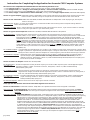
Instructions for Completing the Application for Access to CMS Computer Systems
This form is to be completed and submitted whenever the following situations occur:
– A user requires access to a CMS computer system to perform their job duties. (Submit NEW Request)
– A user changes names, has a change in access needs, job duties, or moves to another component. (Submit CHANGE Request)
– A user receives notice that they must recertify their access needs. (Submit RECERTIFY Request)
– A user retires, resigns, is removed from a contract with CMS, or for any reason no longer requires access. (Submit DELETE Request)
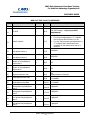
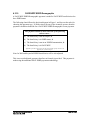
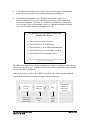
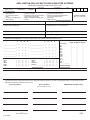
Section 1: Type of Request COMPLETE FOR ALL REQUESTS. Check one box indicating type of request, enter name and current CMS
UserID in blocks indicated, if using one. A separate form must be submitted for each action desired.
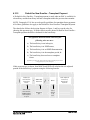
Section 2: User Information COMPLETE FOR NEW, CHANGE AND RECERTIFY REQUESTS. Check employee type, and complete
blocks a. through h.
CMS Employees – Blocks e., g. and h. may be left blank. If not stationed at CMS Central Office, provide a complete mailing address in
block b. and leave block c. blank.
Non-CMS Employees – Block c. may be left blank if not stationed at CMS Central Office. For block h., if your contract number is unknown,
obtain it from your Project Officer or your CMS contact person.
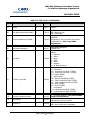
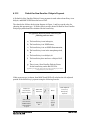
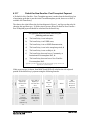
Section 3: Type of Access Required COMPLETE FOR NEW, CHANGE AND RECERTIFY REQUESTS.
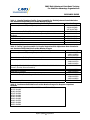
For NEW Requests – Check each type of access required. List the names of all CMS applications you require access to (i.e., OSCAR,
CROWD, CAFM, CLIA) in block a., Application(s). For each application, check the appropriate columns to indicate the
environment(s) access is needed in, and if remote access is required. DO NOT USE THIS BLOCK TO ENTER
SOFTWARE THAT IS PART OF THE STANDARD CMS WORKSTATION CONFIGURATION; SEE BLOCK D. Use
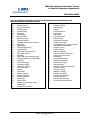
block b., Subsystems, to request access not specific to particular applications. This block is used to note accesses such
as native TSO commands, usually required by system developers. If ‘Other’ is checked, be sure to specify here and in
Section 4, Reason for Request. Non-CMS employees should complete block c., Expected Frequency of Use. If access to
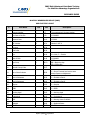
a CMS desktop or LAN is required, check your location in block d., CMS Standard Desktop Software/LAN. Checking
this box will ensure you have access to all software available on the standard CMS workstation (i.e., Word, Excel,
GroupWise, etc.).
For CHANGE Requests – If access needs have changed, enter an ‘A’ to add, or a ‘D’ to delete, for each type of access requiring a change. (Most
changes in job duties or organizational placement require a change in access needs.) If ‘Other’ is checked, be sure to
specify here and in Section 4, Reason for Request. For name changes only, leave this block blank and go to Section 4.
For RECERTIFY Requests – Check each type of access required to perform your job duties. If additional accesses are required, submit a
separate change request. (Those accesses currently held but not checked will be lost.) If ‘Other’ is
checked in block 3.b., Subsystems, or block 3.d., CMS Standard Desktop Software/LAN, be sure to specify here
and in Section 4, Reason for Request.
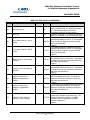
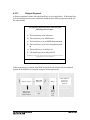
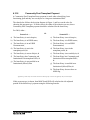
Section 4: Reason for Request COMPLETE AS REQUIRED.
For NEW Requests – Provide an explanation of what job duties require you to access a CMS computer system. Include applicable project
(non-CMS only)
accounting numbers. If ‘Other’ is checked in block 3.b., Subsystems, or block 3.d., CMS Standard Desktop
Software/LAN, specify here.
For CHANGE Requests – Note the nature of the action requiring a change. For name changes, include previous and new names. For
organizational changes, include old and new organization names. If ‘Other’ is checked in block 3.b., Subsystems, or
block 3.d., CMS Standard Desktop Software/LAN, specify here.
For RECERTIFY Requests – Provide an explanation of what job duties require you to access a CMS computer system. Include applicable
project accounting numbers. If ‘Other’ is checked in block 3.b., Subsystems, or block 3.d., CMS Standard
(non-CMS only)
Desktop Software/LAN, specify here.
For DELETE Requests – Note the nature of the action requiring the removal of accesses.
Read, sign and date the back of the form. Then obtain signatures for Section 5.
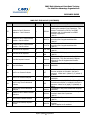
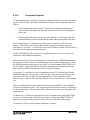
Section 5: Authorization COMPLETE FOR ALL REQUESTS. All requested information must be supplied or noted ‘N/A’.
CMS Employees – Requesting Official: The immediate supervisor must sign and complete the Requesting Official block. The RACF
Group Administrator must also sign and complete the signature block where noted. These responsibilities cannot be
delegated.
Non-CMS Employees – Requesting Official: The Project Officer, if designated, must sign and complete the Requesting Official block. For
Medicare Contractors/Intermediaries/Carriers, a designated company contact must sign and complete the Requesting
Official block. For others, the CMS Liaison/Contact or ADP Coordinator must sign and complete the Requesting
Official block. (IT IS IMPORTANT THAT CONTRACT NUMBER AND EXPIRATION DATE ARE INCLUDED
WHERE APPLICABLE. IF ACCESS IS REQUIRED FOR MULTIPLE CONTRACTS, THE NUMBER AND
EXPIRATION DATE FOR THE CONTRACT WITH THE LONGEST PERIOD OF PERFORMANCE SHOULD BE
USED. IF NO CONTRACTS APPLY, AN APPROPRIATE ‘NOT-TO-EXCEED’ DATE SHOULD BE NOTED, OR ‘N/A’
IF INDEFINITE ACCESS IS REQUIRED.) Approving Official: The immediate supervisor of the Requesting
Official must sign and complete the Approving Official block. For Medicare Contractors/Intermediaries/Carriers, the
Consortium Contractor Management Staff member assigned as Contractor Manager for the company must sign and
complete the Approving Official block. The RACF Group Administrator should note the preferred group for
UserID assignment in Section 1. They must also sign and complete the signature block where noted. These
responsibilities cannot be delegated.
(July 2001)