1
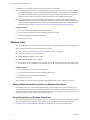
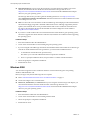
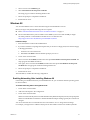
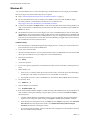
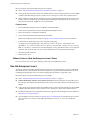
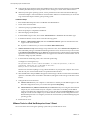
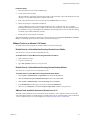
Guest Operating System Installation Guide 3 In the Installation Media panel, select the installation media. Option Description Use operating system installation disk Use the pop‐up menu to select an operating system installation disk. Use operating system installation disk image file Use the pop‐up menu to browse for the .iso file for the operating system. Click Choose to identify the file. Use an existing virtual disk Use the pop‐up menu to browse for the existing virtual disk (.vmdk) file. Click Choose to identify the file. Create a custom virtual machine For example, you would use this if you are installing an older operating system from floppy images. 4 Click Continue to go to the Operating System panel. 5 On the Operating System panel, ensure that the operating system and version for the new virtual machine are correct, or select the correct ones from the pop‐up menus. 6 Click Continue. 7 In the Finish panel: Option Description To create the virtual machine according to the specifications listed in the Finish panel Click Finish. To change disk size or other standard settings of the virtual machine 8 Indicate the folder in which you want to save the virtual machine. The default is your <user>/Documents/Virtual Machines folder, Click Save to start the virtual machine. Click Customize Settings. Save the new virtual machine. When you save the new virtual machine, Fusion displays the Settings window, with which you can make changes to the virtual machine’s disk size, processor usage, removable devices, and so on. When you close the Settings window, VMware Fusion starts the virtual machine. Install VMware Tools. Mandriva Corporate 4 The easiest method of installing Mandriva Corporate 4 Desktop or Server in a virtual machine is to use the standard Mandriva Linux distribution CD. You can also install Mandriva Corporate 4 with a boot floppy/network method is supported. Before you begin, verify that the following tasks are complete: 30 Read “General Installation Instructions for All VMware Products” on page 11. During the Mandriva Corporate 4 installation, you are offered a choice of XFree86 X servers. You can choose either one, but do not run the X server. Instead, to get an accelerated SVGA X server running inside the virtual machine, you should install the VMware Tools package immediately after installing Mandriva Corporate 4. With many Linux guest operating systems, various problems have been observed when the BusLogic virtual SCSI adapter is used with VMware virtual machines. VMware recommends that you use the LSI Logic virtual SCSI adapter with this guest operating system. On a Linux host with an XFree86 3.x X server, it is best not to run a screen saver in the guest operating system. Guest screen savers that demand a lot of processing power can cause the X server on the host to freeze. VMware, Inc.