1
Recording Video with LooxcieCam
To start recording:
• Launch the LooxcieCam app on your iPhone.
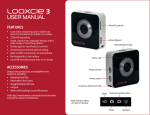
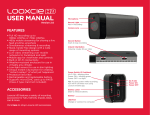
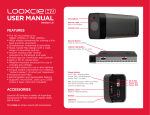
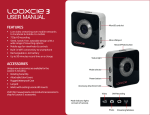
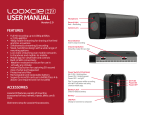
• Press and release either the physical Record button on Looxcie
or tap the
button on the Camcorder screen.
Note: When Looxcie starts recording, you will see the solid red
button
and a flashing red “Rec” symbol appear on the Camcorder screen.
Record button
To stop recording:
• Press and release either the physical Record button on Looxcie
or tap the
button on the Camcorder screen.
Note: When Looxcie stops recording, it automatically saves your video as a clip.
Tip: The timer on the Camcorder screen shows the number of recordable
minutes left.
Level the video image
Go to page 11 to learn how to level the video image.
Tip: Rotate the Camcorder screen to view the video image in either landscape or
portrait format.
Camcorder screen
LooxcieCam App
13