1
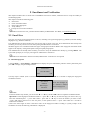
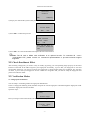
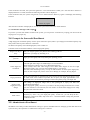
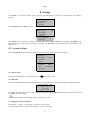
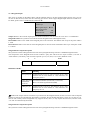
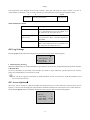
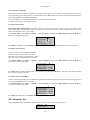
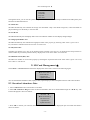
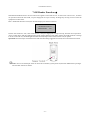
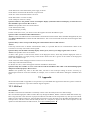
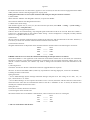
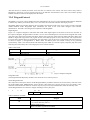
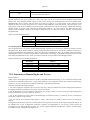
F6 User Manual New Enroll 00998-0 ESC OK(Save) 4) Press OK (save) to save the enrolled fingerprint. If the enrollment fails, the system will prompt you to re-enter your user ID and restart the enrollment from Step 2. Notes: ① Steps of enroll more users are the same with those above of new enrollment. ② If you Enroll New Fingerprint, After place the fingerprint three consecutive times, the screen displayed "FP Enrolled Alrd", that means your fingerprint is repeat, you need change another finger to enrollment. New Enroll 00999-0 FP Enrolled Alrd ESC/Exit 3.1.2 Backup Enrollment Continuing the step 4) as above, If you press ESC on the [New Enroll] interface, you can cancel the new enrollment and display the [Backup Enroll] interface as shown in the following figure: Backup Enroll Continue? User ID: 00998 ESC OK New Enroll Continue? ESC OK The following steps of backup enrollment are the same with those of new enrollment, while the only difference is the “New Enroll” on the top right corner changes into “Backup Enroll”. Note: It is recommended that a long-term user should enroll at least two fingerprints. 3.1.3 Enroll RFID Card 1) Select Menu → User Manage →Enroll User to display the [User Enrollment] interface. Select [Reg RFID] and press OK to proceed. Reg RFID New Enroll? ESC OK 2) Press OK to confirm and proceed. New Enroll Show the card User ID: 00001 ESC OK 3) Input a number (from 1–65534) in the [User ID] field. Press OK to display the ID card enrollment interface. -6-