1
ACCORD Database User Manual V2.2.9
•
•
•
•
•
•
•
•
•
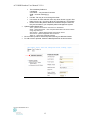
Adding a tumour episode
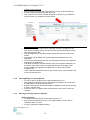
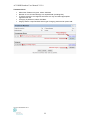
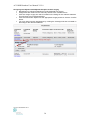
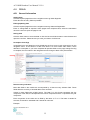
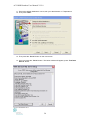
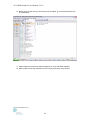
After you select ‘New Episode’ select the tumour type, as shown below (1).
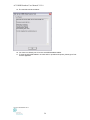
Enter the Episode details and press ‘Save’ (2)
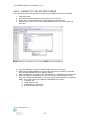
The screens for that tumour stream will appear in the left (3), just select the
relevant screen you would like to enter data in.
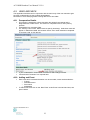
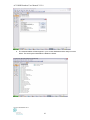
General Information
Each patient can have more than one episode of cancer, episodes can be
seen on the navigation tree on the left of screen and are identified by tumour
type and diagnosis date.
Date of Diagnosis is a mandatory field at a particular point for each tumour
stream.
Some fields may be hidden if a previous selection indicates that it is not
applicable.
The Comments box allows free text. Any information relevant to this patient’s
episode can be added here.
If all fields are entered, use the Mouse to click the ‘Complete’ radio button at
the bottom-right of the screen to indicate that the form is complete. Most
tumour streams will highlight incomplete forms in red on the left hand
navigation tree.
‘Save’ saves the data and remains on the current screen, ‘Save and Next’ will
to move to the next form.
5.1.3
Viewing/Editing an existing Record
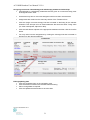
• To edit or view an existing record, search patient as per 5.1.1
• After opening the patient’s record, select appropriate data entry screen from
the Navigation Tree in the left side column
• Browse onscreen form and make changes or additions to the data by clicking
mouse in relevant field.
• Press the ‘Save’ or ‘Update’ button at the bottom of the screen to save any
changes
5.1.4
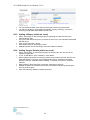
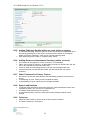
Deleting an existing Patient or Episode
Deleting a patient:
• To delete an existing record, search patient as per 5.1.1
• After opening the patient’s record, in the ‘patient details’ screen, click on
Delete at bottom of screen
• A pop-up message will appear asking:
Version September 2011
14