1
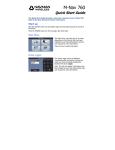
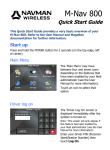
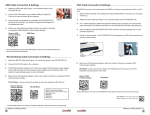
Using Nav: Using Messages: Find a destination Read / store a new message On the ‘Main Menu’, touch Nav. Touch Menu. Touch Find location. When a new message arrives, the ‘New Message’ popup box is displayed and a friendly alert sounds. Touch either: Cancel to store and read it later. Read to display it now. Touch your choice: e.g. Find Address. Enter the information using the onscreen keyboard. Touch Find. Reply to a message Touch Messages on the ‘Main Menu’. Touch the message that you want to reply to. The message is displayed. The M-Nav displays the search results. Sometimes there are multiple matches. If necessary, touch the down-arrow or up-arrow to scroll through the list. Touch the address that you want. Touch Reply. You can either: touch a canned template message; e.g. Job accepted. touch Free Text then type your own message using the onscreen keys. Touch Send. The address is shown on the map. Touch Navigate to. The M-Nav 750 calculates the route, displays the map and starts to give you verbal directions. Create and send a message Touch Messages on the ‘Main Menu’. Touch New. The Canned Template Screen is shown where you can choose to use Free Text or a canned message response. Touch the option you would like. You can then touch Send to send your message. M-Nav 750 | Quickstart Guide