1
ED
[DCS USER MANUAL]
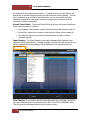
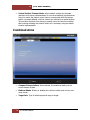
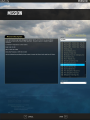
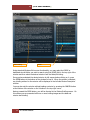
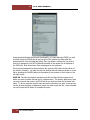
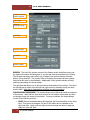
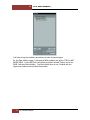
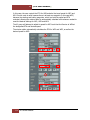
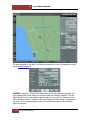
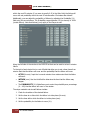
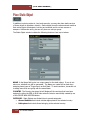
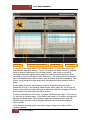
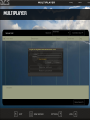
Using standard Windows file browser functionality, you may select the DRIVE you wish
to search using the DRIVE field in the top right of the window and then select the
desired mission from the folder/file listing. Once you select a mission file, the path to
that file is displayed in the PATH field and the name of the mission file is displayed in
the FILE field. Note that mission files are assigned a .miz extension.
Once you have selected the desired mission file, press the OK button at the bottom of
the window to load it. You may also exit the window without loading a mission or track
file by pressing the CANCEL button at the bottom of the window or the X button in the
top right corner.
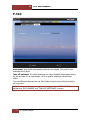
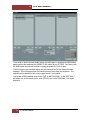
SAVE AS. The Save As function operates much like the Open Mission window but it
allows you save a mission file and give it a unique name. The primary difference is that
you may overwrite the name in the FILE field as you wish and save the file under that
name. To do so, erase the current name and type in the name you wish. You may then
use the browser functions to determine where you wish to save the file. Once complete,
you must press the OK button to complete the save.
61
DCS USER MANUAL