1
Installation
CHAPTER 1
INSTALLING F-22 LIGHTNING 3
W
elcome to F-22 Lightning 3. In order to play F-22 Lightning 3, you must first install the game files onto your computer’s hard drive. If you
wish to use a joystick controller, you should also calibrate it before beginning play.
GAME INSTALLATION
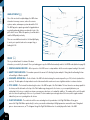
The AutoRun program will automatically load itself and run each time you insert the F-22 Lightning 3 CD into your CD-ROM drive. F-22 Lightning 3
uses the InstallShield® to place the necessary files on your hard drive. Before you begin installing the game, close all programs that your computer
may be currently running. The installation program requires all of your computer’s resources. Then:
1) Place the game CD into your CD-ROM drive and close the drive door. The AutoRun program will now take over. If you have turned off the
AutoRun feature or if the Autorun fails to launch automatically, double-click on the “My Computer” icon on your desktop and then double-click on
your computer’s CD-ROM drive letter. This should launch the F-22 Lightning 3 AutoRun.
2) Click the mouse on one of the menu choices, or type the letter corresponding to the underlined hot key. The AutoRun menu gives you the
following choices:
START F-22 LIGHTNING 3– Select this option to play the simulation. You will first have to install the program on your hard drive.
INSTALL F-22 LIGHTNING 3– Select this option to install the simulation onto your hard drive. You must install the game before you can play. This will
also automatically install the Mission Editor at the same time.
VIEW README– The Readme file contains the latest technical and game-related information about the program.
START MISSION EDITOR– Select this option to create new missions for your F-22. To learn how to use the Mission Editor, please refer to the
Fweditor.pdf (Adobe Acrobat file) included on the CD.
EXPLORE CD– This CD also contains informational files and demos of other NovaLogic games. Use this option to see the contents of the CD.
INSTALL DIRECTX– Make this selection to install DirectX™ 6.0 onto your hard drive. You must have DirectX 3.0 or greater installed on your
machine to play F-22 Lightning 3. 3D Accelerator cards require DirectX 6.0 or greater. Windows NT requires Service Pack 3 (obtained at the
Microsoft Website) to play.
EXIT– Exits the AutoRun program.
4