1
Section 23: Working with Effects
Reference
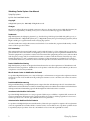
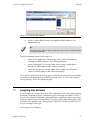
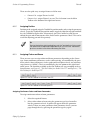
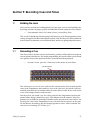
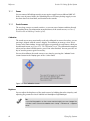
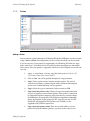
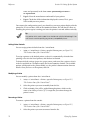
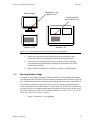
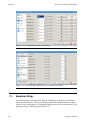
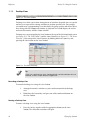
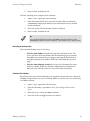
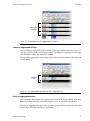
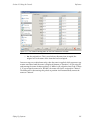
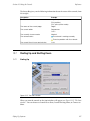
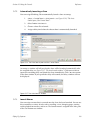
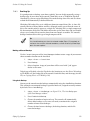
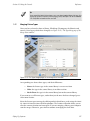
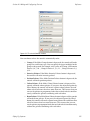
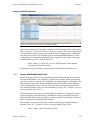
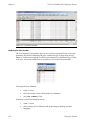
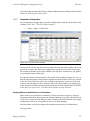
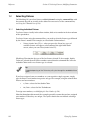
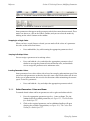
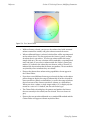
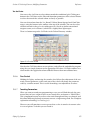
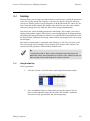
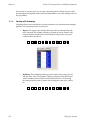
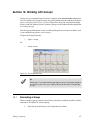
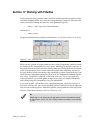
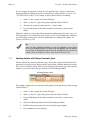
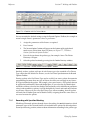
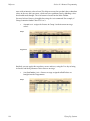
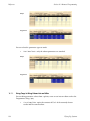
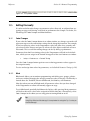
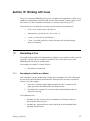
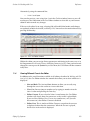
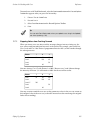
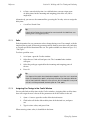
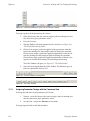
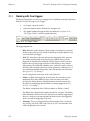
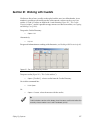
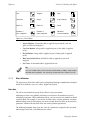
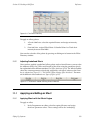
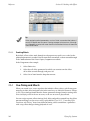
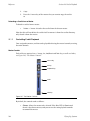
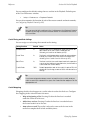
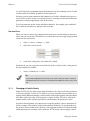
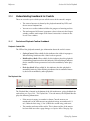
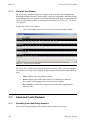
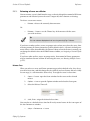
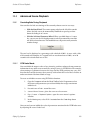
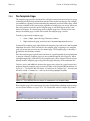
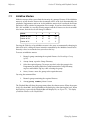
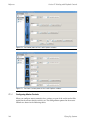
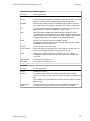
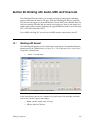
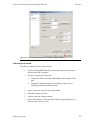
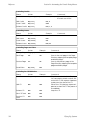
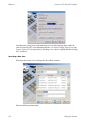
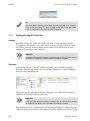
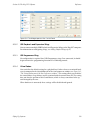
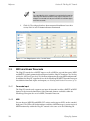
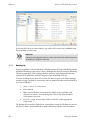
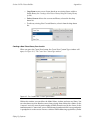
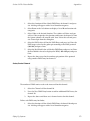
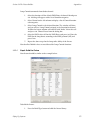
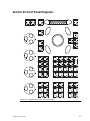
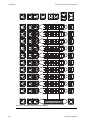
Figure 23.2. The Effect Directory
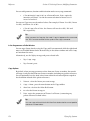
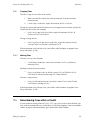
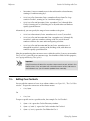
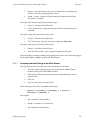
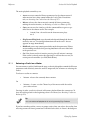
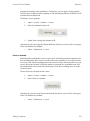
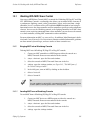
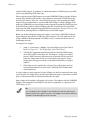
To apply an effects palette:
1.
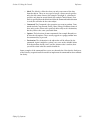
1 Thru 5 @ 50 Enter : select the required fixtures and assign an intensity
value
2.
Effect 13 Enter : assigns Effect Palette 13. Studio Colors 1 to 5 fade their
intensity between 0 and 100%.
You can also select the effect palette by pressing or clicking on its button in the Effect
Directory window.
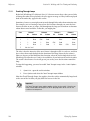
23.2.1
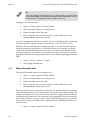
Adjusting Predefined Effects
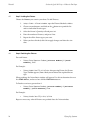
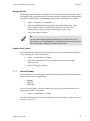
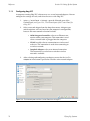
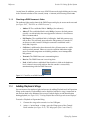
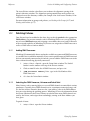
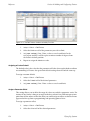
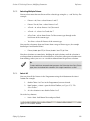
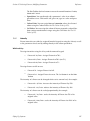
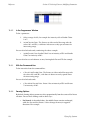
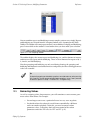
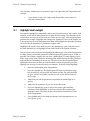
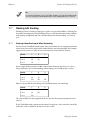
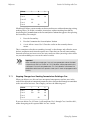
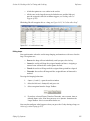
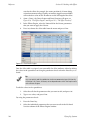
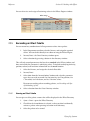
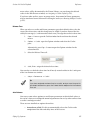
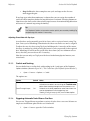
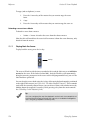
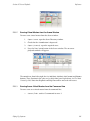
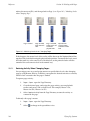
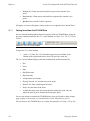
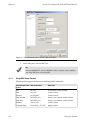
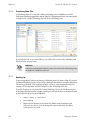
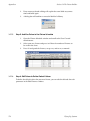
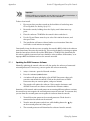
Once you have applied a predefined effects palette to the selected fixtures, you can alter
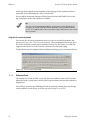
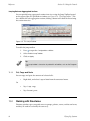
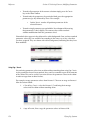
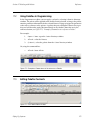
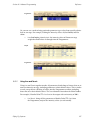
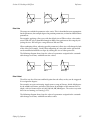
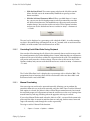
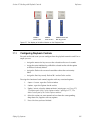
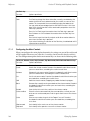
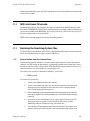
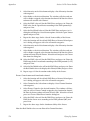
the attributes (Rate, Size, Offset and Length) of the effect using the parameter wheels;
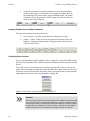
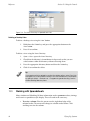
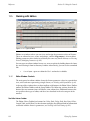
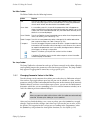
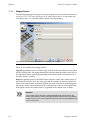
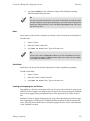
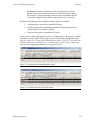
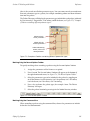
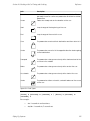
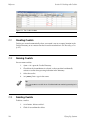
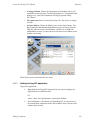
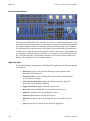
for explanations of the different attributes, see Effect Attributes (p.236). The Wheels Toolbar
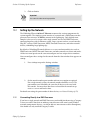
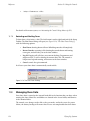
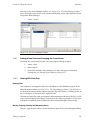
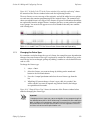
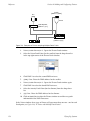
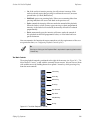
shows the current parameter value being assigned by each wheel whenever the Effect
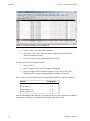
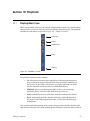
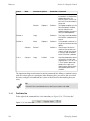
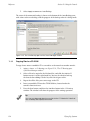
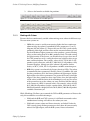
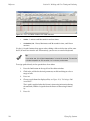
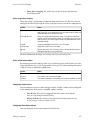
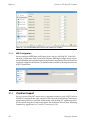
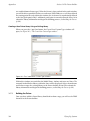
key is selected; see Figure 23.3, “The Wheels Toolbar showing Effect Attributes”. For more
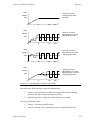
on the different effect attributes see Types of Effect (p.235).
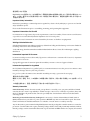
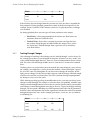
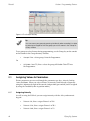
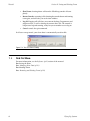
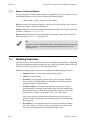
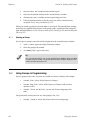
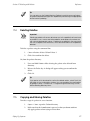
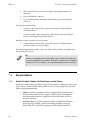
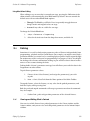
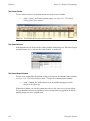
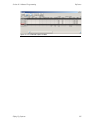
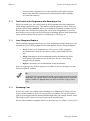
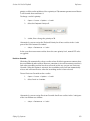
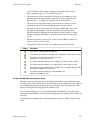
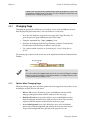
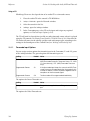
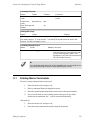
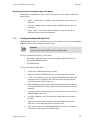
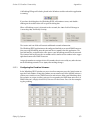
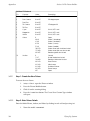
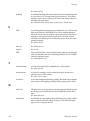
Figure 23.3. The Wheels Toolbar showing Effect Attributes
23.3
Applying and Editing an Effect
23.3.1
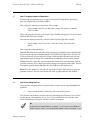
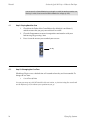
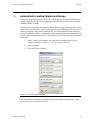
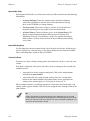
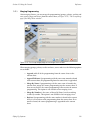
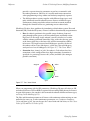
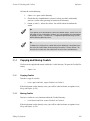
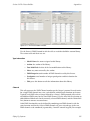
Applying Effects with the Effects Engine
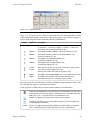
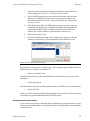
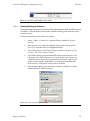
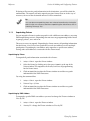
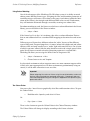
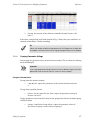
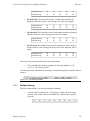
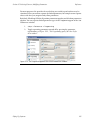
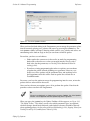
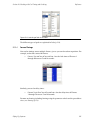
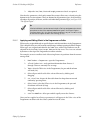
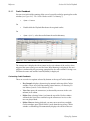
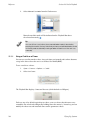
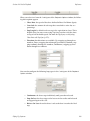
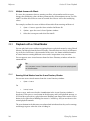
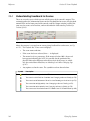
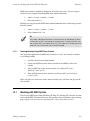
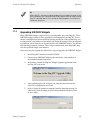
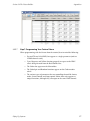
To apply an effect:
1.
Flying Pig Systems
In the Programmer or editor, select the required fixtures and assign
their base parameter values. These settings will be the ‘underlying’
239