1
NTRmeeting
37
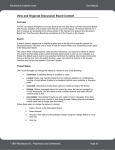
7. Footer menu
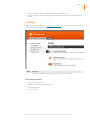
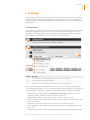
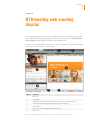
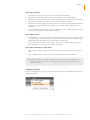
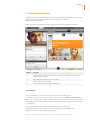
Switch between the different presentations possibilities in the footer menu. The footer also
contains the activation of the “Messages” and “Co-browsing” functions.
7.1 Switching the presentation display area
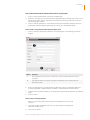
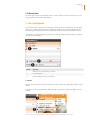
  1. Use the buttons on the right-hand side of the footer menu to switch between the presentation options “Presentation”, “Screen-sharing” and “Chat”.
  2. As moderator you can switch between the presentation options at will. The
participants do not have access to this function.
7.2 Messages
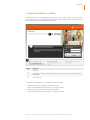
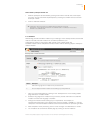
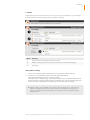
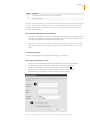
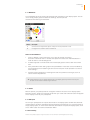
You can open a message window while the meeting is in progress, which then appears over
the presentation display area and can be moved around and placed at will.
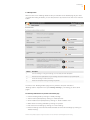
Number
Description
1
Every message in the moderators’ chat has the options “Answer privately”, “Mark”, “Copy
to clipboard” and “Delete”.
2
These messages are sent to all participants.
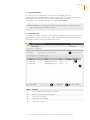
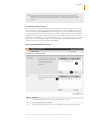
As moderator you have the possibility to carry out a moderator chat. This is normally only visible to the moderators. You can however also adjust it to be visible to all participants by placing
a tick mark at “Chat visible to all users”. Alternatively you can, as moderator, also send messages to all participants.
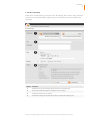
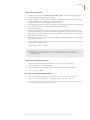
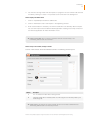
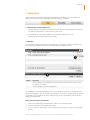
How to send a message to all participants
1
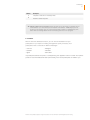
Click on the “Message to all participants” button in the message window.
2
Enter the message in the appearing text field.
3
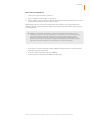
Click on “Send”. A small popup, which contains your message, now opens in the meeting
display.
Valid from January 2009. Subject to change without notice. For more information visit www.ntrglobal.com/ntrmeeting