1
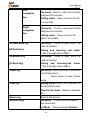
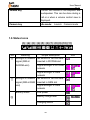
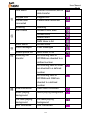
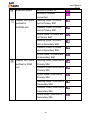
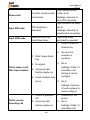
bolt User Manual Ver. 1.0 Taking a picture 1. Use the LCD screen as viewfinder for your picture. 2. Hold the Camera in a horizontal position with Camera button on top and use both hands to keep it still. 3. To adjust the brightness, press [Up/Down Navigation key] when the Screen direction is Horizontal, press [Left/Right Navigation key] when the Screen direction is Vertical. 4. To adjust the focus, press [Left/Right Navigation key] when the Screen direction is Horizontal, press [Up/Down Navigation key] when the Screen direction is Vertical. 5. Press [LSK] to change the Camera settings. 6. Press [OK] or press the Camera button to take the picture. Camera settings Before taking a picture, press [LSK] to change the settings of you Camera. Select from the following options: - - - (Switch to) Front/Rear camera: Activate the front/rear camera to capture the image Switch camera: Select Photo/Video mode to take photo/ video Image size: Set the size of the image that will be captured QXGA (2048 x 1536), UXGA (1600 x 1200), XGA (1280 x 960), VGA (640 x 480), QVGA (320 x 240), SubQCIF (128 x 96). Quality: Select the level of picture quality - Normal, Fine or Super fine (Sharp) White balance: Set the white balance when taking photos under specific lighting conditions - Automatic, Sunny, Cloudy, and Indoors. Effects: Apply color to your picture to give it an artistic touch Normal, Sepia or Black & White 69