1
3. Operation Instructions
3.1 Answering a Door Call
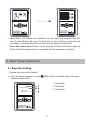
●● Press the CALL button on door station.
●● The monitor rings,and the visitor's image will be seen on screen.
Note:the screen turns off after 40 seconds if nobody answers.
1:1
Standard
Screen
Unlock
Talk
Capture
●● Press TALK Button or touch icon, you can talk with the
visitor for 90 seconds. During talking state, press the TALK
Button again or press icon to end the conversation. If the
system connects two or more Monitors, pick up any Monitor ,
the others will be automatically shut off.
Home
TALK
MONITOR
MENU
3.2 Door Release
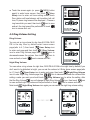
●● During the conversation, press UNLOCK Button or touch icon to unlock the door.
(if two locks are connected to door camera,touch unlock 2nd icon to release the
second lock )
3.3 Entrance Monitoring
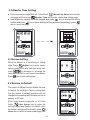
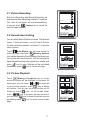
●● Press MONITOR button on monitor in standby mode,or touch Monitor icon on home screen.the screen will display
the view of the Outdoor Station. During monitoring, touch
Manual Camera icon to get into the camera switching
Manual Camera icon on home
mode, (or directly touch
screen), if multi Door Stations are installed, you can press the
camera 1/2/3/4 to monitor the Door Station or CCTV camera
you want.
1
2
3
4
Camera 1 Camera 2 Camera 3 Camera 4
Monitor
Time
Home
TALK
09/30/2010 Thu.16:41
MENU
MONITOR
3.4 Intercom Function
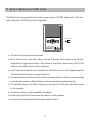
** Intercom Call by namelist:User in one apartment can call other apartments in the
Intercom item system. Press CALL button on monitor in standby mode or touch Intercom by Namelist icon (the namelist
on home screen page ,and then touch will be created automatically by the system). Select a name on the screen then touch
Dial Number icon to call.Press
icon to enter last/next name list page. Dial Number again to redial. 2. Press TALK
Note:1. Press "CALL" button or touch
button again or touch icon to cancel the call.
-2-