1
Office Administration
EZ-CARE2
9. Office Administration
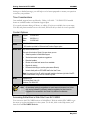
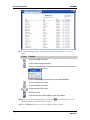
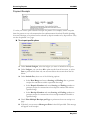
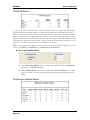
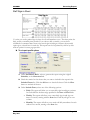
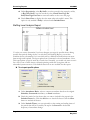
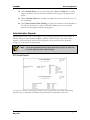
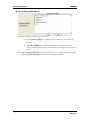
The Office Administration module contains procedures and wizards that help you with the
setup and maintenance aspects of EZ-CARE2.
The features in Office Administration can be
grouped into the following categories:
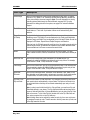
•
Setting up and administering users,
groups, and security settings.
•
Setting up and maintaining your file
cabinets
•
Backing up and restoring your data
•
Setting system preferences
•
Setting session preferences and
maintaining session data
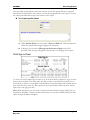
Administering Users, Groups and Security
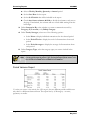
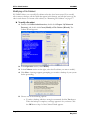
There are several steps to setting up security in EZ-CARE2. They must be performed in the
order detailed below.
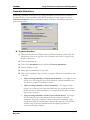
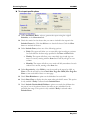
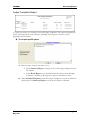
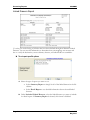
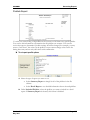
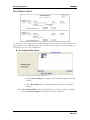
X To set up security features
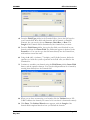
1. Create Security Groups that define the rights available to staff based on their
security clearance. For example, someone in the security group of Administrator
would have wide access to system features, whereas a person in the group
Limited Access would only be able browse some areas of the system and would
be locked out of others.
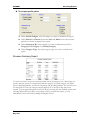
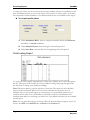
EZ-CARE2 has two kinds of security groups. Cabinet Security Groups define
whether a group member has Full Access, No Access, or Read-Only Access for each
drawer, tab, and page in the system. This section also defines access to functions
in the cabinet, such as Group Posting, Enter Cash Receipts, or Printing Reports.
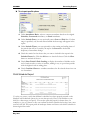
System Security Groups define access to Office Administration features that
can affect all cabinets such as Backup, Create/modify cabinets, and Optimize.
For details on setting up Cabinet and System Security Groups, see page 264.
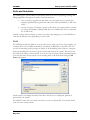
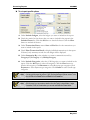
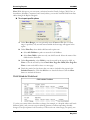
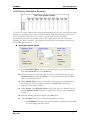
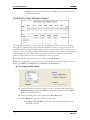
2. After the cabinet and system security groups are established, you need to create
individual users in the system. You will give each user a password and assign
them to a System Security Group. For each cabinet, you should then assign the
user to a Cabinet Security Group. Note that the same user could have different
access rights to different cabinets. Also, if you do not assign a Cabinet Security
Group for a specific cabinet, the user will have NO ACCESS to that cabinet. To
Version 7.0
May 2010
Page 261