1
1. Create the module’s installer on the PC.
•
Insert the module installation CD in your PC’s CD-ROM drive. The installation program automatically
launches.
¾ If the install program does not run automatically, double click the Autorun.exe file on the
installation CD to manually launch the install program.
•
Select your language. The installation menu opens.
•
Select the Download Firmware link. A Windows Explorer window opens with the .MSI files found on your
CD. You will use these files to create the module “installers” on your PC’s hard drive.
•
Double-click on the appropriate MSI file to run it.
¾ If you have installed a previous version of the module you are installing, you are prompted to
uninstall the previous version before proceeding. Follow the onscreen prompts to uninstall the
previous module version, and then run the MSI file again.
•
Acknowledge the licensing agreement and click Next. The Instrument Configuration dialog displays,
where you select language versions to install.
•
You have the choice of creating installers for All languages, or a specific language plus English. Select the
desired language option and click Next.
¾ This language selection creates specific language versions of the module “installer” on the PC, after
which, you may select specific languages of the module to be installed on the Microlog. Note that if
you select All, you need not necessarily install all the languages on the Microlog.
•
Select Next at the Ready to Install the Application dialog to create the module’s “installer” on your PC.
•
Once the installation process is complete, select Finish.
2. Run the “installer” to install the module on the Microlog GX.
On the Microlog GX
•
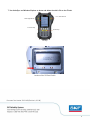
Open the Setup screen and press the 0 (shift) and F1 (Extn Mgr) keys simultaneously to display the
Extension Manager.
•
Verify that a prior version of the module you are installing is not already installed.
¾ If a prior version is installed, use the arrow keys to highlight the module on the main screen and
press F2 (Select), then F1 (Uninstall). Select Yes at the confirmation. The module is removed
from the GX device.
On the PC
•
If necessary, download ActiveSync from the Microsoft website and install.
2