1
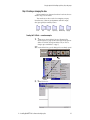
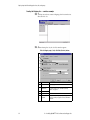
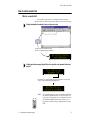
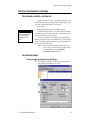
How to edit a counter file
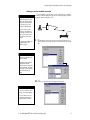
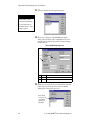
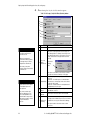
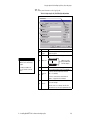
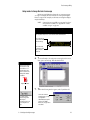
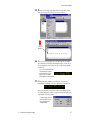
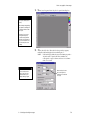
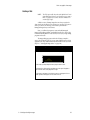
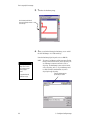
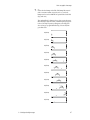
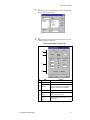
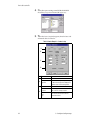
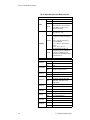
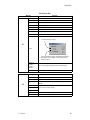
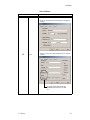
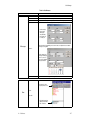
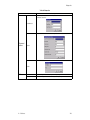
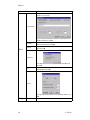
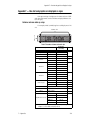
Table 26: Counter Example 3 — Counter 3 setup
Start
Enter 0 because we want counter 3 to start at 0
hours and then count up to 100.
Target
Enter 100.
Inc
Enter 1 because we want counter 3 to count up 1
hour at a time—1, 2, 3, and so on.
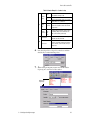
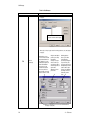
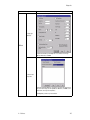
Target
Files
One–Five
Check Two. This means that one message will
appear on the sign after counter 3 has reached
its target value.
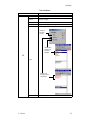
Counter
Run Time
Start
Time
Stop
Time
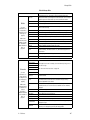
The times when you want the counter to run. In
this example, Always is selected because we
want counter 3 running continuously.
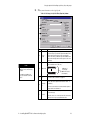
Counter
Values
C
On Weekends
Since we do not need our counter running on
weekends, leave this unchecked.
Auto Reload
This box is checked because we want our
counter to count down continuously. If this box
was not checked, counter 3 would count up to
100 just once.
D
6.
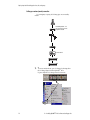
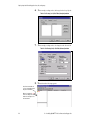
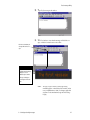
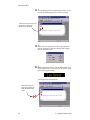
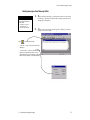
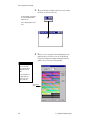
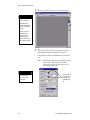
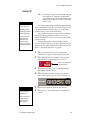
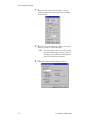
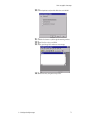
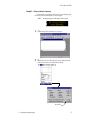
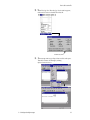
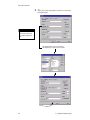
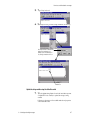
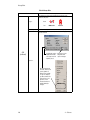
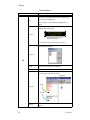
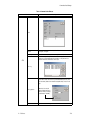
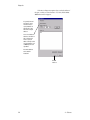
Next, select Target Files. For Target File 1, select Browse and then
select the file you created called target2.msw:
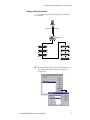
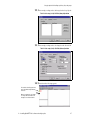
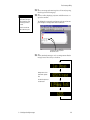
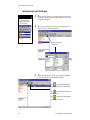
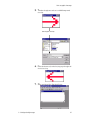
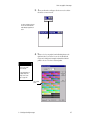
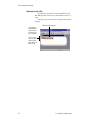
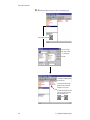
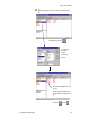
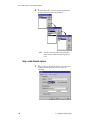
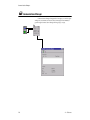
7. After selecting the target file, click OK. Then double-click the
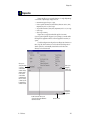
Engineering site to access the Site Editor window:
Double-click
Engineering.
3 — Creating and sending messages
93