1
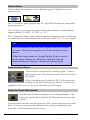
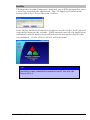
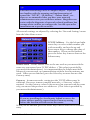
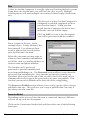
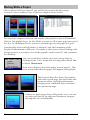
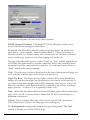
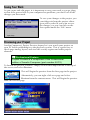
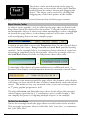
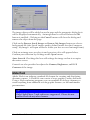
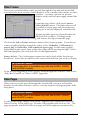
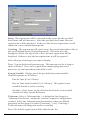
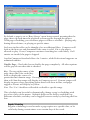
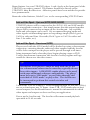
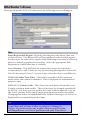
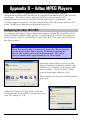
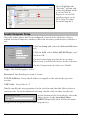
The far right column of the time domain table shows the
Dwell Time, or page duration – and allows you to change
it.
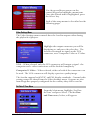
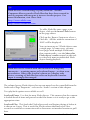
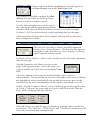
Click once on the desired range to highlight it, then click on the Dwell
Time field to bring up the dwell time selector.
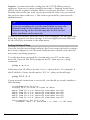
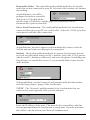
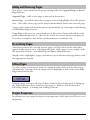
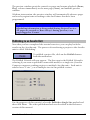
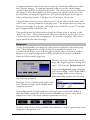
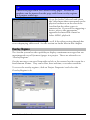
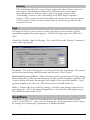
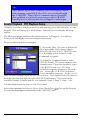
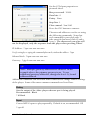
When first created, a page will be set to “Use Project
Default” (discussed in the Project Properties section).
Uncheck that and then modify the dwell time as
desired.
Regular Scheduling Examples
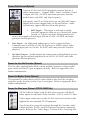
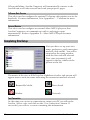
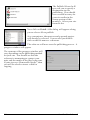
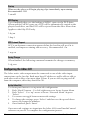
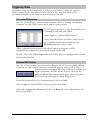
Here are some examples of regular scheduling along with a description of
what is being done.
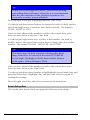
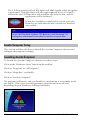
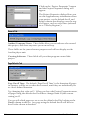
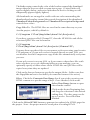
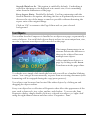
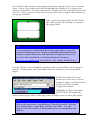
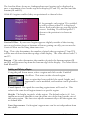
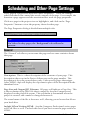
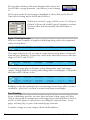
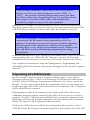
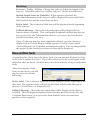
This page will play for 30 seconds at a time between the hours of 6am and
4pm on every Monday, Wednesday, and Friday that falls between the date
range of 5/10/07 and 5/24/07.
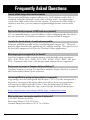
To make the page play at all times of day during that same date range,
simply change both the starting and ending times to midnight. This makes
the page valid 24 hours a day.
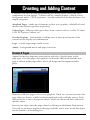
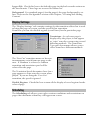
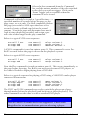
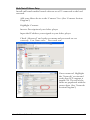
Building on the first example, the second range shown here adds a second
condition – play for 15 seconds at a time from 4pm to midnight.
Event Scheduling
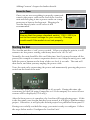
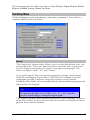
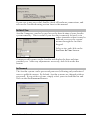
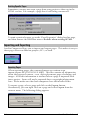
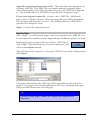
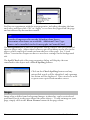
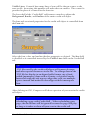
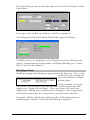
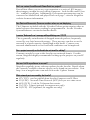
Event scheduling specifies an exact date and time when a page will play.
This is often used in conjunction with triggering a playback device such as
a DVD or VHS player, to play back a recording at a specific time. Event
pages will not play as part of the normal page rotation.
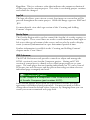
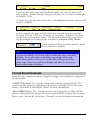
To make a range an event, simply check the Event box.
72
Aavelin User Manual