1
2
for Dynomation-5 3D animations). If you have the same
or a newer version of DirectX
already installed, the installer
will detect its presence and will not
overwrite newer files.
b) Another dialog box may appear and
ask for permission to install a Camtasia™
Codec on your system (needed to display
tutorial and video help files). Choose
Install to begin the codec installation.
c) A final dialog box may appear and
guide you through the installation of
the HASP driver for the Dynomation-5
USB security key (discussed next). After
the USB key driver has been installed,
Dynomation-5 software installation is
complete.
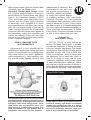
300-Page Color Users Manual
Installing The USB Security Device
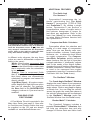
9) Install the USB
Security Key (the
small USB “plug”
supplied with
Dynomation) into
any available USB
port on your computer. This key is licensed
to you, the purchaser of this software,
and will allow you to run Dynomation-5
on any of your computer systems. You
are licensed to install Dynomation-5 on
as many computers as you wish, however,
Dynomation-5 will only run on one system
at a time; the computer with the Security
Key installed.
Note: If you do not have an available USB
port (your computer must have at least
one USB port to use Dynomation-5), you
can install a USB Card or Hub to extend
the number of available USB ports. The
Dynomation-5 Security Key will function
properly in USB ports directly attached
to the computer or on an external USB
Hub.
Solving USB Security Key Issues
If Dynomation-5 displays an error message
that the Security Key or HASP is missing,
here are some quick steps you can follow
to isolate and correct this problem:
a) Make sure the Security Key is, in
fact, properly connected to a functioning
This QuickStart guide will get you
going, but to help you apply all the capabilities of this powerful simulation, a 300page, full-color, on-disk Users Manual
has been included with this software.
After installing Dynomation5, you can
access the Users Manual by: 1) Opening
the Help menu within Dynomation5 and
selecting User Manual, or 2) Opening
the Windows Start menu, select Programs, Motion Software Simulations,
choosing Dynomation-5 Engine Sim,
and finally clicking on the DynomationUsers Manual icon that appears within
that folder, or 3) double click on the
Dynomation-UsersManual.pdf file
located on the Dynomation5 CD-ROM
(in the root directory).
IMPORTANT: If any of these techniques
fails to open Dynomation documentation, you need to install Adobe Reader.
The reader installation file is located
in the Adobe Reader folder on the
Dynomation CD-ROM. Simply double
click on the program installer located
in that folder to install Adobe Reader
on Windows98/Me/NT/2000/XP/Vista/
Win7 systems.