1
Hot Forming Analysis - B Pillar
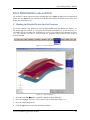
Figure 1.20
Thermal material definition of tools
2.
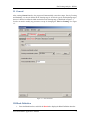
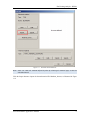
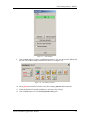
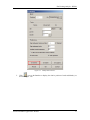
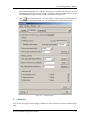
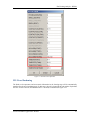
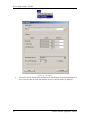
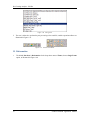
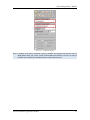
Toggle on the Used for all tools option, as illustrated in Figure 1.21.
3.
Click the Import button to import the tool material: toolmat_hot.mat.
4.
Click the OK button to exit the thermal material dialog box.
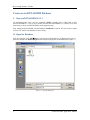
Figure 1.21
Thermal material dialog box
VII. Tools Positioning
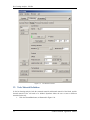
After defining all tools, the user needs to position the relative position of tools. The tool positioning
operation must be carried out each time when the user finishes the tool definition. Otherwise, the user
may not obtain correct result. In addition, the tool position is related to the working direction of each
tool. Therefore, you need to carefully check the working direction prior to positioning the tools.
1.
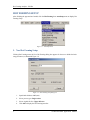
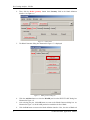
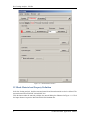
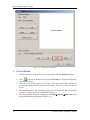
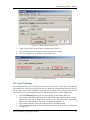
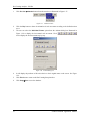
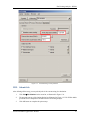
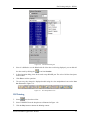
Click the Positioning button in the Tools tab to display the Positioning dialog box.
2.
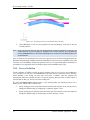
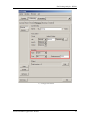
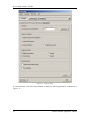
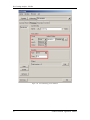
The program will automatically locate other tools and the blank with binder as the reference
position. The tools and the blank will be moved to a new position and the corresponding
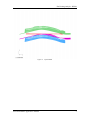
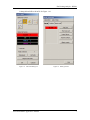
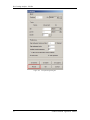
distance values will display in each edit box, as illustrated in Figure 1.22.
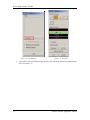
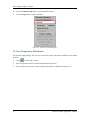
Click the Reset button to restore the original position of the blank and tool.
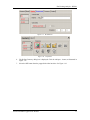
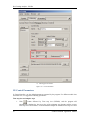
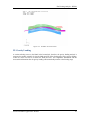
Click the On lowers button to position the blank and tool based on the lowers, as illustrated
in Figure 1.23.
3.
4.
eta/DYNAFORM Application Manual
15