1
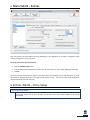
• Entries Tab #3 - Relays
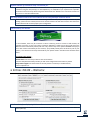
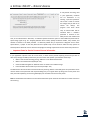
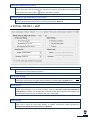
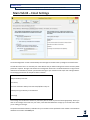
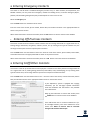
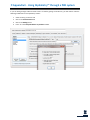
The settings in this area allow you to specify the Comm Port your relay board(s) is hooked into, as well as other
common features related to your relay board(s).
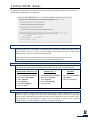
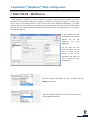
Will you be using a Serial Comm Port to connect to external relay boards?
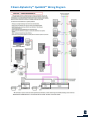
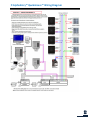
AlphaEntry™ can be used as a telephone entry type system and may not require use of relay boards.
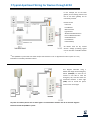
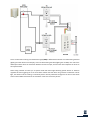
However if AlphaEntry™ is interfaced to a conventional intercom system or requires door strike control or
special functions such as on screen concierge building controls (Switch Console) or other special
applications then one or more relay boards will be required.
If Yes is selected, then you will be required to answer the remaining four questions on this tab.
If No is selected, the remaining answers are not required and will be grayed out.
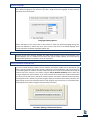
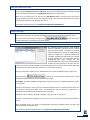
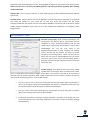
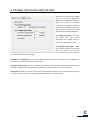
Enter the Serial Comm Port to use to activate the relays:
If the radio button “Yes” is selected then you must assign which serial port will be used to connect to the
relay boards. More information on available Ports can be found on your PC by the methods below:
Windows 2000 / 2003 Server / XP
•
•
•
•
•
•
Click the Windows Start Button
Right-click on My Computer
Select Properties
Select Hardware
Select Device Manager
Expand (+) Ports
Windows Vista / 7
•
•
•
•
•
Click the Windows Start Button
Right-click on Computer
Select Properties
Select Device Manager
Expand (+) Ports
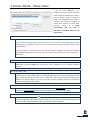
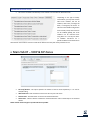
Windows 8
• Right-Click the Windows
Start Button
• Select Device Manager
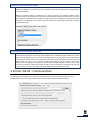
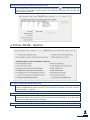
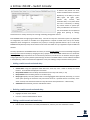
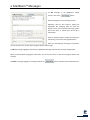
Display “Switch Console”
The Switch Console is used for Concierge control of lights, gates, cameras, elevator calls, etc. If this
feature is used by your application, it will control relays providing either momentary or latching dry
contact closures. Checking this box enables the Switch Console configuration tab in the Editor and the
Switch Console tab on the AlphaEntry™ directory screen. This feature is usually used for Concierge
controls however; it can be enabled for any entrance if special needs require it.