1
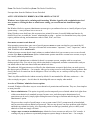
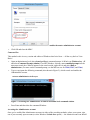
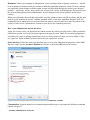
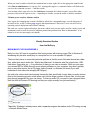
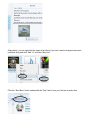
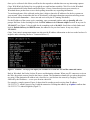
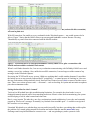
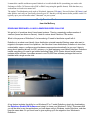
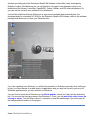
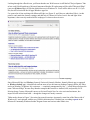
when installing new software or making system-level changes that might affect other users. The task won't proceed until the user explicitly grants permission via a UAC prompt. This one-step speed bump lets most admin-level tasks run to completion. However, some complex, multistep tasks might fail. This can happen when a task requires several admin-level tools working in series or uses command lines or scripts. The process could stop because only the first tool or task received the necessary permissions. Sign in as Administrator: The master Admin account — the focus of this article — has full permissions and operates with virtually no restrictions. It has none of the restrictions or drawbacks of the first two administrator-access methods. When you're in the Admin account, you'll likely never see a UAC prompt — any system-level task you initiate is carried out immediately. Not only is this UAC-free operation convenient, it will also let you complete complex tasks that would otherwise fail. Within an Admin account, you can sequentially run multiple tools and tasks without the problem of repeatedly confirming elevated privileges. In practice, I've found that the Admin account gives the best shot at overcoming otherwise unsolvable Windows-permissions issues. Many tasks that can't be completed via an admin-level user account or the runas-administrator option will generally work in the Admin account. How to reveal and activate the Admin account There are various ways to enable the Administrator account, but two are probably the simplest: an easy pointand-click process and a quick command-line entry. (All the following instructions assume you're starting from an admin-level user account.) Point and click This method uses the Local Users and Groups feature (or plugin) in Windows' Microsoft Management Console (MMC). It's available on all but the most limited editions of Windows, such as Windows Basic and Windows Home. Here's how to enable the Admin account via the MMC: Win8: From the desktop, right-click the Start icon, click Run, and then enter lusrmgr.msc (or open the Search charm and enter lusrmgr.msc there). Win7/Vista: Click Start, enter lusrmgr.msc into the run or search boxes, and then press Enter. In all three versions of Windows, if a UAC prompt appears, click Yes to accept the warning. With the Management Console open, click Users in the left pane. In the center pane, right-click Administrator and then select Properties. The Administrator Properties dialog box will appear. In Administrator Properties, under the General tab, clear (uncheck) the Account is disabled box (Figure 1).