1
CHISON 600M (2009 VERSION) ULTRASOUND SYSTEM
Save and Recall
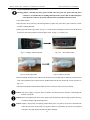
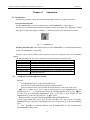
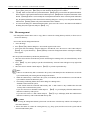
1. Its file format should be FAT32, otherwise, please format USB memory disk as FAT 32 in Windows operation
system.
2. It is strongly prohibited to pull out the connected USB memory disk when the system is saving, recalling the files
or managing the files or directories saved in the USB memory disk (During working status, the indicator on the
USB memory disk is flickering).
3. Please use the same USB memory disk during the operation before switching off the system .
4. It is suggested the USB memory disk is kept only for the ultrasound examination purpose, please don't copy any
files on this disk which are not relevant to ultrasound diagnosis examination.
12.2 Save current image
The function to store current image is only available at frozen status.
Note:
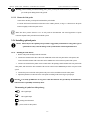
1. If there is no USB memory disk connected to the system, the image file will be saved as jpg format in the system
under the default directory: /harddisk/bmp/current patient ID.
2. To save the memory space for the system, when USB memory disk is connected to the system, the image file will be
saved as bmp format in the connected USB memory disk under the default directory: /udisk/bmp/current patient
ID.
3. If users want to store the images directly in the system, please make sure no external USB memory disk is connected
to the system.
Operation procedure:
1. Freeze the image.
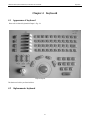
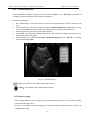
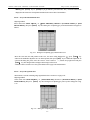
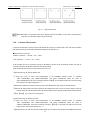
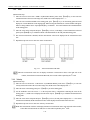
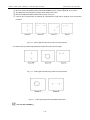
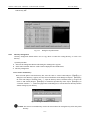
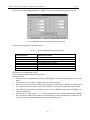
2. Press【SAVE】key, then the dialog box- “Save/ Recall” appears on the screen.
3. The default selection is item-“Save current image”, move the cursor on “OK” button and press 【SET】 key or
press shortcut key【SAVE】directly to save the current image.
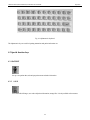
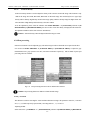
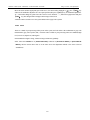
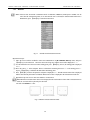
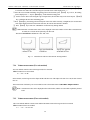
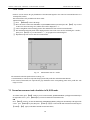
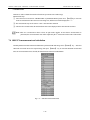
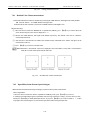
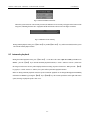
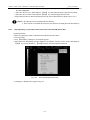
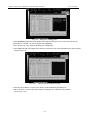
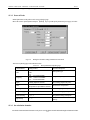
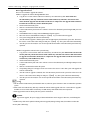
4. A dialog box-“Save File” appears, input the file name, move the cursor to “Save” button and press【SET】key or
press shortcut key【SAVE】directly to finish the operation. The system will automatically store the current screen
information. If press 【SET】key on “Cancel” button or 「×」button at top right corner of the dialog box, it will
exit from Save File function without saving any information.
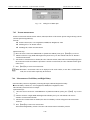
Fig. 12-2 Dialog box for saving image
12-2