1
PhoneRider Installation under Windows NT 4.0
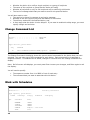
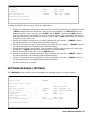
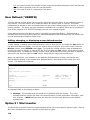
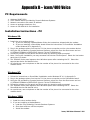
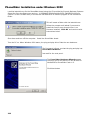
Load the latest drivers for the PhoneRider board using the CD provided by Pinnacle Business Systems.
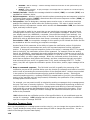
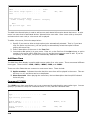
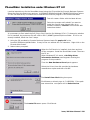
Select Run from the Start menu and run X:\ICOM400\ICOMVoice\WinNt\ FWN4E0500002.exe (where
X is the CD-ROM drive) or browse the CD-ROM drive to find the program in the mentioned folder.
This will create a folder with the latest drivers.
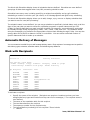
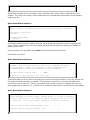
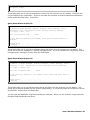
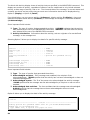
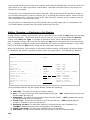
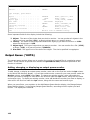
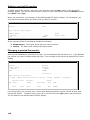
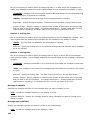
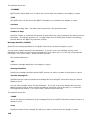
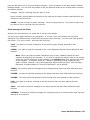
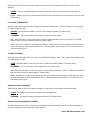
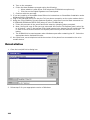
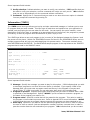
Follow the prompts until asked if you want to
install the version even though there is no
firmware installed, Click No and continue with
instructions below.
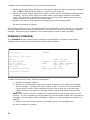
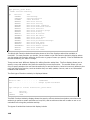
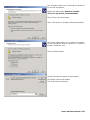
It is necessary to first install the PnP (Plug n Play) function for Windows NT 4.0. To determine whether
PnP is installed, the pnpisa.sys file will exist in the C:\WINNT\system32\drivers folder. If PnP is not
already installed, follow the next 2 steps.
1. Using the CD provided by Pinnacle Business Systems locate file pnpisa.inf in the
Icom400\ICOMVoice\WinNt folder. It may be the one without the .inf extension. Right click on the
file and select Install.
2. Reboot when prompted.
When the PnP function is installed, shut down and turn
off the computer. Install the PhoneRider board. Then turn
the PC on.
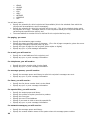
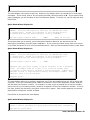
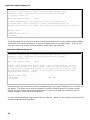
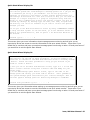
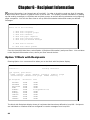
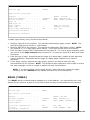
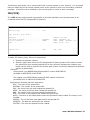
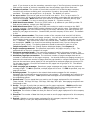
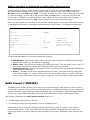
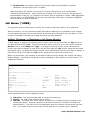
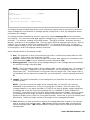
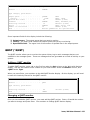
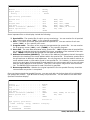
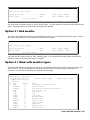
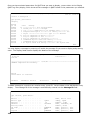
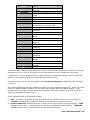
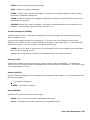
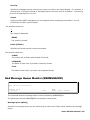
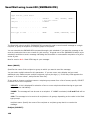
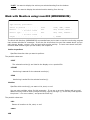
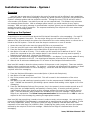
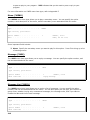
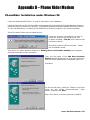
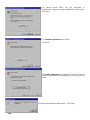
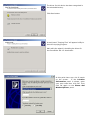
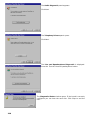
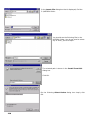
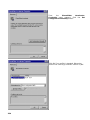
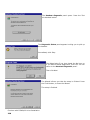
When Windows NT 4.0 starts, a Building driver
information database panel appears showing the
progress of the procedure.
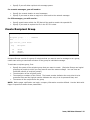
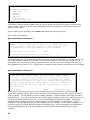
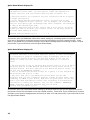
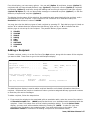
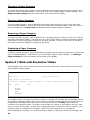
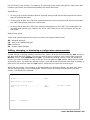
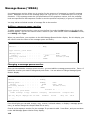
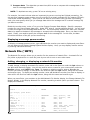
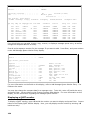
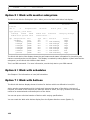
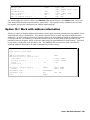
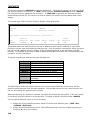
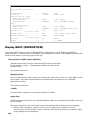
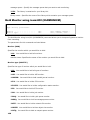
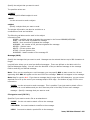
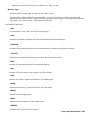
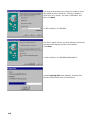
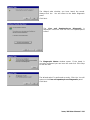
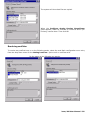
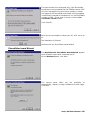
Then the New Hardware Found panel appears.
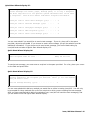
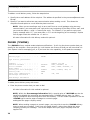
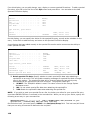
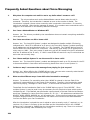
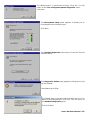
Select the Driver from disk provided by hardware
manufacturer option and then click OK.
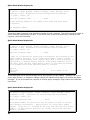
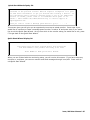
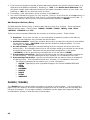
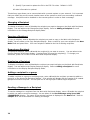
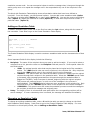
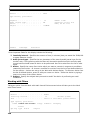
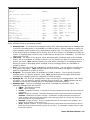
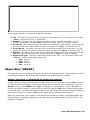
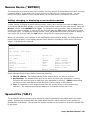
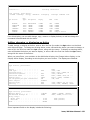
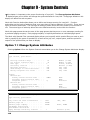
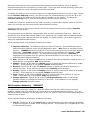
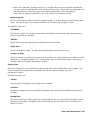
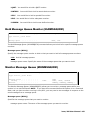
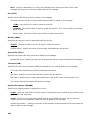
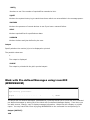
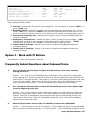
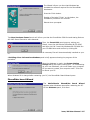
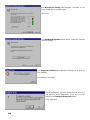
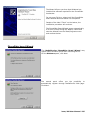
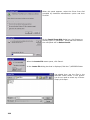
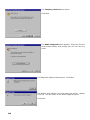
The Install From Disk dialog box opens.
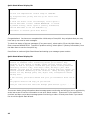
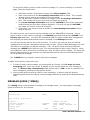
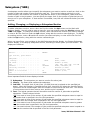
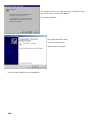
Click Browse or directly type in C:\MPI2DRV. If the path
was entered the next panel will be Select Device.
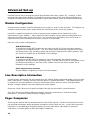
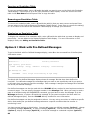
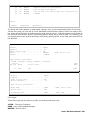
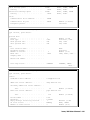
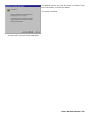
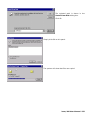
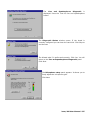
The Locate File assert opens. Click Cancel.
icom/400 User Manual- 229