1
4.
Access the camera
You can log on to the webpages of the CD810F1 from a PC which is on the
same subnet as the camera. You can open the login page directly from your
web browser or use Siqura Device Manager to access the camera.
4.1
Connect via web browser
To connect to the camera via a web browser
1. Open the web browser.
2. Type the IP address of the CD810F1 in the address bar, and then press
ENTER.
The factory-set IP address of the camera is in the 10.x.x.x range. You will
find it printed on a sticker on the camera.
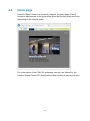
If your network configuration is correct you are directed to the login page
of the camera.
4.2
Connect via Siqura Device Manager
With Siqura Device Manager - a tool included on the supplied Siqura Product
CD - you can locate, manage, and configure Siqura IP cameras and video
encoders.
To connect to the camera via Siqura Device Manager
1. Start Siqura Device Manager
The network is scanned.
Detected devices appear in the List View pane.
2. Use the tabs in the Tree View pane to define the scope (subnet) of your
search.
3. Click the column headings in the List View pane to sort devices by type, IP
address, or name.
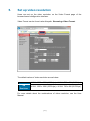
4. To connect to the webpages of the CD810F1, double-click its entry in the
device list,
- or Right-click the entry, and then click Open Web Page.
The login page of the camera is opened in your web browser.
[11]