1
dotProject Version 2.0.2 Basic User Manual
Section 4: Project Elements – Ancillary Modules
De Bortoli Wines
File Name
Description
Versions
Task Name
Owner
Size
Type
Date
Name of the file as it was uploaded
Full description of the file as entered when the file was uploaded.
Indicates the total number of revisions or versions of the file that have been
uploaded.
This column indicates the task that the file is associated with.
This column indicates the name of the user that has a file checked out. If the file is
not checked out then the option CO will be displayed. If you have previously checked
out a file your name will not be shown but CI indicates that you can check in the
latest revision of that file.
Indicates the size of the file.
Indicates the mime type as established by browser at the time the file is uploaded. If
you require further information about the mime types applied (and hence the
applications that will be associated with the file if you chose to download the file please refer to your browser documentation or the web in general.
Date and time that the file was uploaded.
The latest version of dotProject incorporates a basic file version control system. This system manages
checking out and checking in files and associated locking of files.
When you list files available from a particular project, via the Files link (not the Files tab under a Project),
there will be three possible options / displays:
CO
CI
owner name
Check Out
Check In
If the file has been checked out by another user
If a file is checked out by another user then their name will be shown in the CO column and you will not be
able to access that file for updates (you will still be able to click on the filename and view the file) until it is
returned by the nominated user.
Checking Out Files
Checking out a file is done by clicking on the CO option in the CO column discussed above.
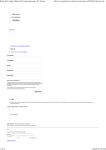
The top of the form shows the File Name, the Type, Size (in bytes) and the name of the user that uploaded
the file.
You then have a box in which you should record a reason for the checkout so that other users will know the
work that is being done with the file.
Click off the Notify Assignees of Task or Project Owner by Email option if you do not wish dotProject to
automatically send an email to advise that the file has been checked out.
dotProject Basic User Guide – v2.0.2 compatible
Page 3
Document Version 1.2