1
PIP Operations
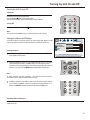
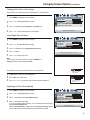
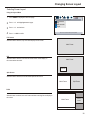
Viewing the Picture-in-Picture
1
Press MENU to display the menu main page.
2
Press 3/4 to display layout menu page.
3
Press 6twice to select pip item.
4
Press 4 or OK to display pip frame.
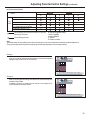
The screen displays one main frame and one PIP frame.
5
Press 5or6to select main frame or PIP frame.
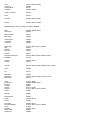
layout
full screen
pip
split screen
pop3
grid
select activates pip window layout
Main Frame
The selected frame displays with a green border.
Note:
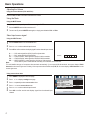
4You can quickly open or close PIP frame by directly using the PIP button.
4Many but not all adjustments and settings can be applied to the PIP picture
when the PIP frame is selected.
4To cancel PIP frame, press the PIP button or select the full screen item and
confirm.
4The PIP audio is only output through the headphone jack.
PIP Frame
Adjusting the Size of PIP Frame
1
2
3
4
5
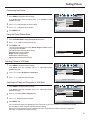
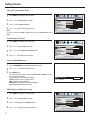
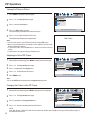
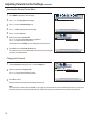
With the PIP frame displaying, press MENU to display the menu main page.
Press 3/4 to display window menu page.
Press 6repeatedly to select pip size item.
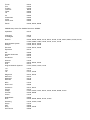
window
image size
h position
v position
pip size
pip position
fill all
50
50
12
Press 3/4 to adjust the size of PIP frame.
Press MENU to exit.
right/left to adjust PIP size
Note:
You can the SIZE button to quickly access the pip size adjusting menu.
Changing the Position of the PIP Frame
1
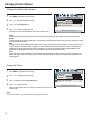
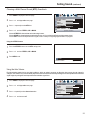
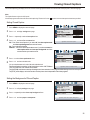
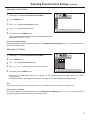
With the PIP frame displaying, press MENU to display the menu main page.
2
Press 3/4 to display window menu page.
3
Press 6repeatedly to select pip position item.
4
Press 3/4 to select a desired position for the PIP frame.
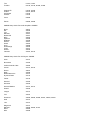
window
image size
h position
v position
pip size
pip position
fill all
50
50
12
right/left to adjust PIP position
NOTE:
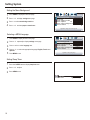
If PIP, Split Screen, or POP3 is turned off in DVI input mode and the input changes to VGA, go to the Input Menu (page 17)
and switch the input to DVI.
25