1
SmartGo™ 1.5 User Manual
Toolbars
70
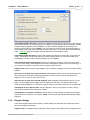
last move only (either marked or numbered), or all move numbers. When starting variations at 1,
numbering all moves shows you the moves played since branching off from the main line of play.
(Note: To split a game into diagrams showing move numbers, see Create Diagrams 14 .)
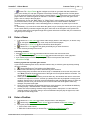
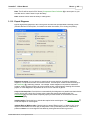
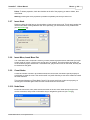
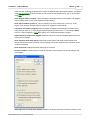
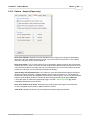
Show Computer Lookahead: [Player only] Toggles display of the computer's opinion of the
board. You can choose the level of detail of what the computer is thinking about while it's determining
its move. Note that changing this menu while SmartGo is thinking doesn't cause the display to be
updated immediately; however, the display will be shown correctly on the next move. Unsettled groups
are shown with a red outline; groups that depend on winning a ko are shown with a blue outline.
4.11
Comment Toolbar
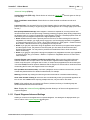
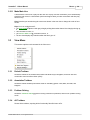
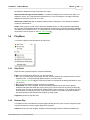
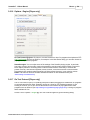
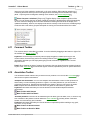
The comment area is embedded in a toolbar. It can be resized by dragging at the bottom or right of all
the toolbars (see Screen Layout 7 ).
Keyboard: The arrow keys are normally used to replay the game, but while the focus is in the
comment area, the arrow keys perform text editing functions. See Keyboard Focus 10 for more
information. Note that you can simply start typing to enter comments, regardless of the current
keyboard focus.
Detail: When showing the start of a game, the comment view may show the game comment (entered
as part of the Game Info 29 ) as well as the regular comment, separated by a line of special characters.
4.12
Annotation Toolbar
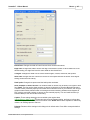
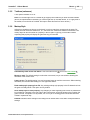
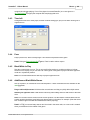
The annotation toolbar makes it easy to mark moves or positions. You can use the Find toolbar 65 to
later search for specific annotations.
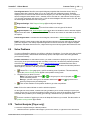
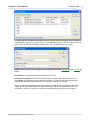
Hotspots and checkmarks: You can use hotspots and checkmarks to mark unclear positions for
further study, to mark interesting positions in a game, or to mark positions for your Go teacher to
review and comment on. Hotspots and checkmarks are shown in the tree view next to the nodes.
Note: Hotspots and checkmarks in the root node of a game are also shown in games view.
Keyboard: Hold down Shift while you click the buttons to mark double hotspots and double
checkmarks.
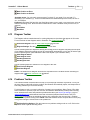
Mark Position with Hotspot
Mark Position with Checkmark
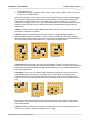
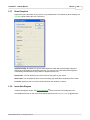
Annotate positions: Positions can be marked as good for black, good for white, even, or unclear. Any
such valuation of the position is shown where the score estimate 62 is usually shown in the Main
toolbar, and overrides any score estimate.
Keyboard: Hold down Shift while you click the buttons to emphasize position markings: very good,
very even, or very unclear.
Mark Position as Good for Black
Mark Position as Good for White
© 2002-2004 Smart Go, Inc. All rights reserved.