1
GETTING STARTED
Music player
B ro w s i n g t h e We b
Only download and use files from sources that offer
adequate security and protection against harmful software.
Your Vertu phone includes a music player for listening to music
tracks, recordings or other MP3, MP4, AAC, eAAC+ or Windows
Media Player sound files that you have transferred to your Vertu
phone using the File Manager in Vertu PC Suite.
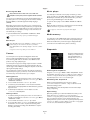
You can access mobile Internet services with the Web browser on
your Vertu phone. You can view pages that use wireless markup
language (WML) or extensible hypertext markup language
(XHTML).
To open the music player scroll to M enu » A d d it i o n s » M u si c
p la y e r .
Depending on which service provider you use, your Vertu phone
might already have Internet settings installed so you might be able
to browse the Internet straight away. If you cannot connect to the
Internet, please contact Vertu Concierge or visit www.vertu.com
and download your settings.
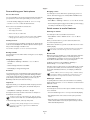
Music files that you transfer to your Vertu phone are automatically
added to the list of songs in the music player.
Long press on the E N D key stops the music player.
To open the Web browser select M e n u » A d d it i o n s » We b .
Media memory
Long press on the 0 key opens your default web page.
Your Vertu phone has 4GB internal memory (which we refer to as
media memory). You can store thousands of high quality images.
Q u i ck t i p s
When the media memory is full a message is displayed. Delete
some files from the media memory before continuing.
Enter *#100# and press the SEND key to display your phone
number (may not be relevant for all service providers).
Enter *#0000# from the stand-by display to show the software
version.
Stopwatch
Long press on the 1 key calls your voice mail box.
Camera
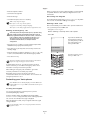
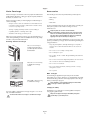
The Vertu stopwatch function
enables you to measure time,
take intermediate times or
take lap times in 1/10 of a
second intervals.
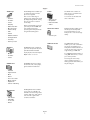
Your Vertu phone incorporates a 3 Megapixel camera with
autofocus and integral LED flash. There is a powerful 8x digital
zoom which together with the 16 million colour QVGA screen
produces crisp, high quality images.
Your Vertu phone supports an image capture resolution of 2048 x
1536 pixels. Pictures are saved in jpg format and video clips are
saved in 3gp format. Available recording time depends on the video
clip length and quality settings.
S t a r t i n g t h e s t o p w a t ch
You can take photos and record video clips with the camera and
send them by message to your friends, or save them in the memory,
from where they can be transferred to your computer.
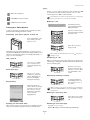
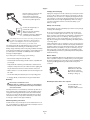
Using the J O Y S T I C K go to M enu » Ti me » S t o p w a t ch . To start
the stopwatch, press the S TAR T- S T O P button (C AM ERA button or
N U M B E R 4 key) on the left side of your Vertu phone. To stop the
stopwatch press the S TA RT-S T O P button again.
Ta k i n g p ho t o s
1. To start the camera, give a short press on the C AM ERA button on
the side of your Vertu phone or use the J O Y S T IC K to go to Men u
» A d d it i o n s » C a m e r a .
2. To zoom in and out move the J O Y S T I C K up or down.
R e s e t ti n g th e s t op w a t ch
When you have finished timing, press the RE S ET button
(C O N CI E RG E button or N U M B E R 6 key) to return the second
hand to the starting position.
3. To autofocus, press and hold the C A M E RA button and a white
frame appears on the display. When the white frame turns green the
object is in focus.
Select O p t i o n s to view the Stopwatch menu and select Split
timing or Lap timing.
4. To take the photo release the C AM ERA button or use the
J O Y S T I C K to select C a p t u re .
Split timing
Ta k i n g v i d e o s
Split timing enables you to take intermediate times while you are
timing. Press the S P L I T button (CO N C IE RG E button or
N U M B E R 6 key) every time you want to take an intermediate time.
The second hand continues moving and the split times are
displayed at the top of the screen. To stop the stopwatch press the
STAR T- ST O P button (CA ME RA button or N U M B E R 4 key) again.
You can save, view and delete the split times.
1. To start the camera give a short press on the C AM ERA button on
the side of your Vertu phone or use the J O YS T I C K to go to: Me nu
» A d d it i o n s » Vi d eo .
2. To zoom in and out move the J O Y S T I C K up or down.
3. To record a video use the J O YS T I C K to select R ec o rd or press
and hold the C A M E RA button. To pause the recording, select
Pa us e ; to resume the recording, select C o n t i n u e . To stop the
recording, select S t o p .
English
9