1
5
Playing Discs
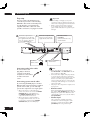
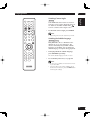
Switching the audio channel
Depending on the disc, this feature may not
work.
Video-CD
•
On Video CDs you can switch between
stereo, just the left channel, just the right
channel or Mixed Mono.
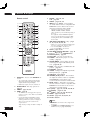
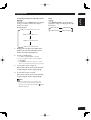
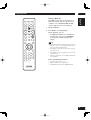
To switch the audio channel, press AUDIO
repeatedly.
The current playback channel(s) are indicated onscreen.
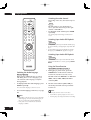
Switching Super Audio CD Playback
layer
Super Audio CD
• On a hybrid disc (with Super Audio CD and CD layers),
the player will always start playing the Super Audio CD
layer.
• To switch between the Super Audio CD layer and the
CD player, press AUDIO while playback is stopped.
Switching Super Audio CD Playback
area
Super Audio CD
• To Switch between the Super Audio CD multi-channel
and Super Audio CD stereo areas by pressing SOUND
MODE.
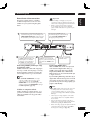
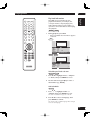
Using the Zoom Function
DVD-Video
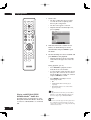
2
The current audio language is shown on-screen.
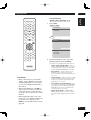
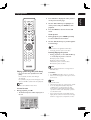
Use the cursor buttons (5/∞/2/3) to
select the part of the screen you want to
zoom in on.
To set audio language preferences, see page
47.
• Zoom play cannot be used on some discs.
DVD-Audio
When playing a DVD-Video disc recorded
with dialog in two or more languages, you
can switch the audio language at anytime
during playback.
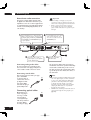
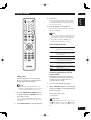
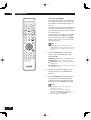
To display/switch the audio language, press
AUDIO repeatedly.
Note
• Depending on the disc, there are cases in which the
audio language cannot be switched during play. In
this case, make changes using the DVD menu.
• It may take a few seconds till a selected Audio
Language is audible.
24
JPEG
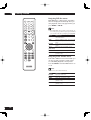
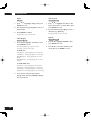
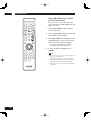
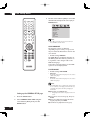
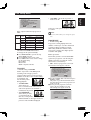
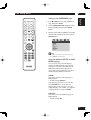
During play or pause mode, press the
ZOOM button on the remote control to
zoom in x2, x3, x4, x1/2, x1/3, x1/4,
Normal in order for DVD-Video or VCD and
100%, 125%, 150%, 200%, Normal in
order for JPEG.
DVD-Video
•
Video-CD
1
Switching the Audio Language
•
DVD-Audio
Note
• Zoom will not operate properly for some scenes.
• Zooming may cause image deterioration or shaking.