1
Troubleshooting
If you have ANY problems, follow these steps FIRST.
Most technical problems can be fixed by resetting your NextBox.™
Here’s how to reset your NextBox™
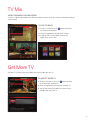
1.Press
on your Rogers remote, select Troubleshooting and press
2.Under the Diagnostics tab, select Reboot Set-top box and press
YES and pressing in the prompt.
.
. Confirm by selecting
3.Wait for approximately five minutes while your NextBox™ reboots.
4.Check to see if the problem you were having is now fixed.*
5.If it isn’t fixed, please check rogers.com/hookups for more details
*Make sure your TV is on and set to the correct input (e.g., Ch 3, Video 1, etc.).
No Picture On Any Channel
Symptom:
You turn on your television and NextBox™ but receive no picture on any of your channels.
Potential solutions:
1.Ensure that all equipment is plugged in and turned on. If it is on and the screen is black, try tuning to Channel 03 on
your NextBox.™ (Ensure that your TV is tuned to the correct input.) If no picture appears, go to Step 2.
2.There may be a problem with how your cables are connected to your home entertainment equipment. Ensure that the
cables are connected properly and securely. (Additional information can be found at rogers.com/hookups)
If there is still no picture:
1.Disconnect the coaxial cable from your NextBox™ and connect it directly to your television.
a) Change the channels on your TV. If a picture appears, proceed to Step 2 below.
b) If no picture appears, please call us at 1 866 368-8335.
2.Disconnect the cable from your television and reconnect it to your NextBox,™ then tune to Channel 01.
If this did not fix your problem, please visit rogers.com and click on the Support Tab to chat live with a Rogers
representative, or contact us at 1 866 368-8335.
Did You Know
Inputs vary among TVs. The input could either be a menu setting or a
button found on your TV or your TV remote such as SOURCE or INPUT.
15