1
EX100_User's Guide.book Page 19 Wednesday, April 30, 2008 12:08 PM
■
If the function key doesn’t permit you to display simultaneously
on both screens, you should check your monitor settings to make
sure both the LCD screen and the external monitor port are
enabled.
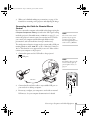
From the Control Panel, open the Display utility. In the Display
Properties dialog box, click the Settings tab, then click
Advanced (in Windows Vista®, click Advance Settings). The
method for adjusting the settings varies by brand; you may need
to click a Monitor tab, then make sure the external Monitor port
is set as your primary display and/or enabled. See your computer’s
documentation or online help for details.
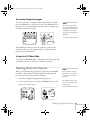
If you’re using Mac OS X:
You may need to set up your system to display on the projector screen
as well as the LCD screen. Follow these steps:
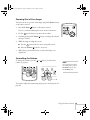
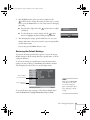
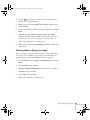
1. From the Apple® menu, select System Preferences, then select
Display or Displays.
2. Click Detect Displays.
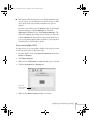
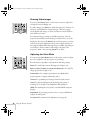
3. Make sure the VGA Display or Color LCD dialog box is selected.
4. Click the Arrangement or Arrange tab.
Make sure
Mirror Displays
is checked
5. Make sure the Mirror Displays checkbox is selected.
Displaying and Adjusting the Image 19