1
5
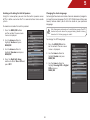
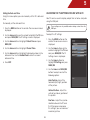
Adjusting the TV Settings for Use with A PC
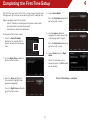
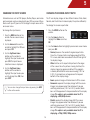
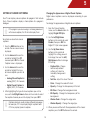
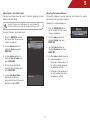
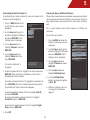
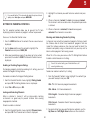
Setting the Date and Time
Using this menu option, you can manually set the TV’s date and
time.
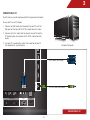
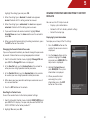
Your TV can be used to display output from a home computer
using the RGB port.
To manually set the date and time:
These settings are only available when viewing content from the
RGB port.
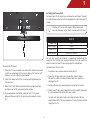
1. Press the MENU button on the remote. The on-screen menu is
displayed.
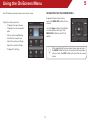
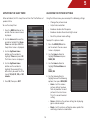
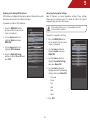
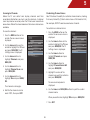
To adjust the PC settings:
2. Use the Arrow buttons on the remote to highlight the TV icon
and press MENU/OK. The TV Settings menu is displayed.
1. Press the MENU button on the
remote. The on-screen menu is
displayed.
3. Use the Arrow buttons to highlight Date & Time and press
MENU/OK.
2. Use the Arrow buttons on the
remote to highlight the TV icon
and press MENU/OK. The TV
Settings menu is displayed.
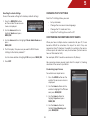
4. Use the Arrow buttons to highlight Current Tiime.
5. Use the Arrow buttons to highlight individual numbers in the
date and time. Use the Number Pad to enter the current
date and time.
3. Use the Arrow buttons to
highlight PC Setting and press
MENU/OK.
6. Press EXIT.
4. Use the Arrow and MENU/OK
buttons to adjust each of the
following options:
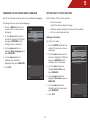
Horiz. Position - Adjust the
horizontal (left/right) position
of the picture.
Vertical Position - Adjust the
vertical (up/down) position of
the picture.
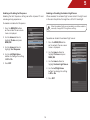
Fine Tune - Adjust the synchronization between the PC and
the TV. Increase or decrease
this setting if you see “waviness”
or a blurry picture.
29