1
Wireless Network
j
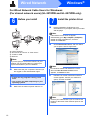
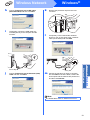
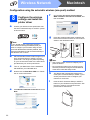
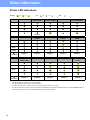
The machine LED's will indicate the connection
results. See LED indications when using the
one-push wireless setting mode on page 33.
A WLAN report will automatically be printed. If
the connection failed, check the error on the
printed report and refer to
Troubleshooting on page 28
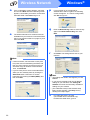
k
Click Next.
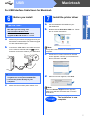
Macintosh
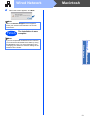
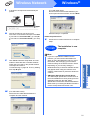
m
Follow the on-screen instructions to complete
setup.
Note
When the Brother Support screen appears,
make your selection and follow the on-screen
instructions.
Finish
The installation is now
complete.
Note
l
Check the box after you confirm that you have
completed the wireless settings, and then click
Next.
If you use a specified IP Address for the machine,
you must set the Boot Method to Static by using
the BRAdmin Light. For more information, See
Changing your machine’s network settings in the
Network User’s Guide.
Note
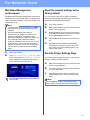
• You can find your machine's MAC Address
(Ethernet Address) and the IP Address by
printing out the Printer Settings Page. See Print
the Printer Settings Page on page 31.
23
Macintosh
• If there is more than one of the same model
connected on your network, the MAC Address
(Ethernet Address) will be displayed after the
model name. You can also confirm your IP
Address by scrolling to the right.
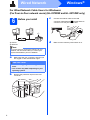
Wireless Network
IMPORTANT
DO NOT try to cancel any of the screens
during this installation.
Windows®
Install the printer driver