1
24 ULEAD BURN.NOW USER GUIDE
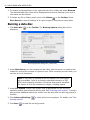
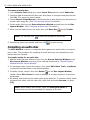
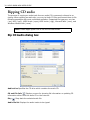
2. Add the audio files to burn from the Source Explorer Window to the Disc Layout
Window using any of the methods mentioned at “Source Explorer Window and Disc
Layout Window”.
Note: You can add video files such as AVI and Windows Media
Video. Audio will be extracted from the video files and added as
audio tracks to the Disc Layout Window. To add Quicktime files,
you must first install QuickTime in your computer.
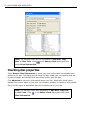
3. Audio files will be added as tracks in the Disc Layout Window. To rearrange tracks,
select the track(s), then select Edit: Move Track - Up/Down or drag the selected
tracks to the desired position.
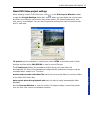
Note: Click Project settings
to set the background, font, and
styles of your tracks and song info. For details, see “Music DVD-Video
project settings”.
4. To delete a track, select it then click Delete
on the Disc Layout Window
toolbar. Select Disc: Revert to reset all settings of an open project to its previous
saved state.
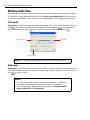
5. By default, each track has the same name as the audio file. To rename a track, select
the track then either click the track title, right-click and select Rename, or press
[F2].