1
1
Getting Started
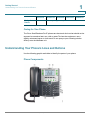
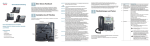
Understanding Your Phone’s Lines and Buttons
#
Phone Feature
Description
5
Softkey buttons
Press a softkey button to perform the action shown on
the label on the LCD screen above.
Note: The SPA501G has the following four buttons:
Redial—Dials the last number called.
Cancel—Cancels an action (such as a transfer).
Conference—While on a call, press to start a
conference call and dial another number. After
the second party answers, press Conference
again to create the conference.
Transfer—Transfers a call. See the “Transferring
Calls” section on page 29.
6
Additional line keys
Indicates phone line status. (SPA509G only)
7
Navigation button
Ability to scroll left, right, up, or down with the four-way
navigation button. (Not available on the SPA501G.)
8
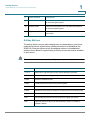
Messages button
Press to access voice mail (must be set up by your
phone system administrator).
9
Hold button
Press to place a call on hold.
10
Setup button
Press to access a menu to configure features and
preferences (such as your directory and speed dials),
access your call history, and set up functions (such as
call forwarding).
For the SPA501G, accesses the Interactive Voice
Response menu, which allows you to perform tasks like
getting the IP address of the phone. See the User Guide
documents on Cisco.com for more information. (See the
list of links at the end of this document.)
11
Mute button
Press to mute or unmute the phone. When phone is
muted, the button glows red. A flashing mute button
indicates the network connection cannot be found.
12
Volume button
Press + to increase the volume and - to lower the volume
of the handset, headset, speaker (when the handset is
off the phone, or ringer volume (when the handset is on
the phone).
Cisco Small Business Pro IP Phone SPA50X User Guide (SPCP)
9