1
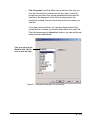
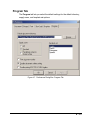
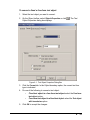
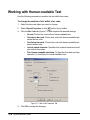
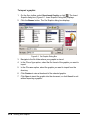
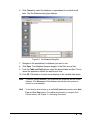
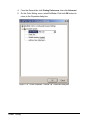
6. Click Connect to select the database or spreadsheet from which to pull
data. The Get Database dialog box displays.
Figure 9-6. Get Database Dialog Box
7. Navigate to the spreadsheet or database you want to use.
8. Click Open. The database filename displays in the Data source field.
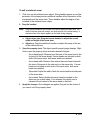
9. From the Table and Field options, select the desired table and field. This is
where the application obtains the data at print time.
10. Click OK. Field data for the first record displays in the variable data object.
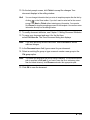
Note:
To select a different database, you must break the connection with the current
database. Click Disconnect in the Database tab and follow this process to
connect to a new database.
Hint!
To see data for other records, go to the Print Preview feature and use the Next
Page and Prev Page options. For additional information on using the Print
Preview feature, see Chapter 11: Previewing Documents.
9 -9