1
LABEL & SW-P-08 DATA IMPORT / EXPORT
Labels and SW-P-08 mapping data
for physical I/O ports and for Hydra
patchbays can be imported and
exported to / from H2O, reducing
the need for the same data to be
manually entered repeatedly on
different systems.
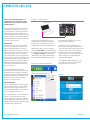
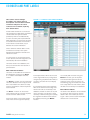
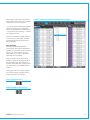
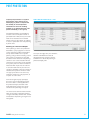
Clicking on the TOOLS button at the
bottom of the IO Box & Port Labels
screen, or the Hydra Patchbays screen
brings up import/export menus.
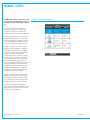
When exporting, you must select the I/O
boxes/Hydra patchbays to be included.
Data is then put into CSV format and
downloaded from the Control Processor
to the PC. Depending on the amount of
data being converted and downloaded,
this process may take some time.
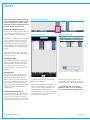
The location of the downloaded CSV file
depends on the web-browser being used
to display H2O. If using Google Chrome,
as recommended by Calrec, the file
download progress is shown in the bottom
left hand corner and upon completion the
download button can be clicked to open
the file which can then be saved to the
desired location. The file is also saved to
the My Documents\Downloads folder.
Other browsers may ask for a location to
save the file to.
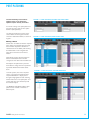
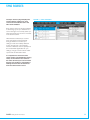
When importing a CSV file, select the file
location and then the data required from
the file. Depending on the file size, the
import process can take some time. Do
not interrupt this process by closing H2O
or resetting the Master Control processor.
A confirmation message is displayed upon
completion.
CALREC Putting Sound in the Picture
Editing CSV files
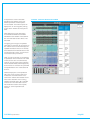
CSV files can be manually edited. Using
spreadsheet software to view the file
makes the data easier to read than using
a text editor. Many spreadsheet and CSV
specific applications are available, the
following describes how to import a CSV
file into Microsoft’s Excel -
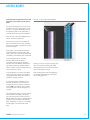
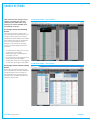
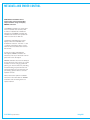
MS EXCEL CSV FILE IMPORT STEPS
• From the menu across the top of the
Excel window, choose Data>Import
External Data>Import Data.
• Select the file to be imported, then in
the next step, ensure the “Delimited”
option is selected before clicking
NEXT.
• Select Comma as the delimiter
character and click NEXT.
• In the following step, all columns need
to be set to ‘text’ as the data format all columns can be selected together
by clicking on the left most column to
highlight, scrolling across to the right
then shift+click the right most column
to highlight all columns. Once all
columns are set to text, click Next.
The data should then be available,
displayed as a spreadsheet.
When you have finished editing, the file
should be saved as a .CSV file rather than
a .XLS file. Select Yes in the pop-up to
only save the active sheet. In the following
pop-up, click Yes again to keep the format
and omit incompatible features.
Only the data under the headers EDIT
Box Label, EDIT Port Label, Edit Port
Description, EDIT SW-P-08 Matrix,
EDIT SW-P-08 Level, and EDIT SW-P08 ID can be changed. DO NOT edit
any other data fields or the headers.
37