1
S530D QSG.book Page 76 Tuesday, May 7, 2002 4:14 PM
Appendix
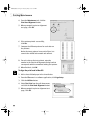
4. Read the License Agreement, then click Yes if you agree.
If a message prompts you to restart Windows, remove the
CD-ROM, then click OK. After the computer restarts, re-insert the
CD-ROM and continue.
5. When the main menu appears, make sure that the Printer Driver is
highlighted, then click Install. The printer driver will load automatically.
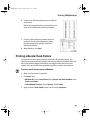
6. When prompted, turn on the printer so the printer port (connection) can be
automatically detected.
If your computer cannot detect a printer port, see the
troubleshooting tip for “Computer cannot detect a printer port”
on page 61.
7. When the Terminate Installation dialog box appears, click OK.
8. Register your product by following the on-screen instructions.
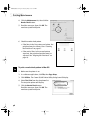
9. Make sure Other Driver is selected, then proceed to install the Memory Card
Utility by following the on-screen instructions.
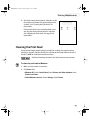
10. Make sure Application is selected, then proceed to install the applications by
following the on-screen instructions. This may take a few minutes.
11. Click Yes if you are prompted to restart the computer.
To install the printer driver in Mac OS:
The printer driver that came with your printer supports
Mac OS 8.6 – 9.x. For Mac OS X driver and instructions, visit our
Web site: www.canontechsupport.com.
1. Be sure the printer is off before continuing.
2. Make sure the USB cable between the printer and computer is securely connected.
3. Close any open software applications.
4. Insert the S530D Setup Software & User’s Guide CD-ROM in the CD-ROM drive.
5. Open the printer driver folder on the CD-ROM.
6. Double-click the Installer icon.
76