1
Operate the Rimage 360i
Aligning the ink cartridges
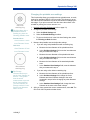
For optimal print quality and maximum printing speed, use this procedure to align the ink
cartridges.
- Important! For maximum printing speed, align the ink cartridges upon initial installation and
each time you replace the ink cartridges.
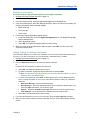
1. Navigate to the printer utility.
a. From System Preferences, select Print & Fax. The Print & Fax window opens.
b. If you are using OS X v10.3, in the Print & Fax window, select Set up Printers. The
Printer list opens.
c.
From the Printer list, select 360i. The 360i window opens.
d. From the toolbar, select Utility. The Printer utility opens.
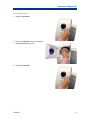
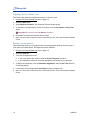
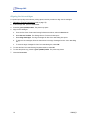
2. Align the ink cartridges.
a. From the printer utility popup menu, select Align Cartridges. The window updates to
display the cartridge alignment pane.
b. From the cartridge alignment pane, select Align. The Align Cartridges Wizard displays.
c.
Follow the onscreen prompts to complete the alignment.
3. When the alignment is complete, close the printer utility.
110808_D
19