1
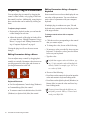
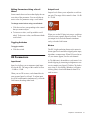
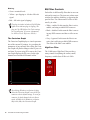
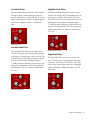
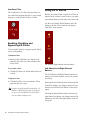
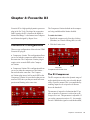
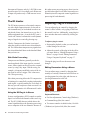
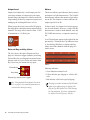
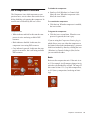
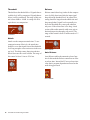
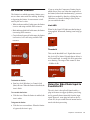
D3 Compressor Controls The Compressor icon, which represents a compression curve, acts as a three-state switch for enabling, disabling, or bypassing the compressor. Its current state is indicated by the icon’s color. To disable the compressor: Start key-click (Windows) or Control-click (Mac) the icon. When the compressor is disabled, the icon is black. To re-enable the compressor: Click the icon. When the compressor is enabled, the icon is white. Compressor icon To bypass the compressor: • White indicates enabled. In this state the compressor is active and using available DSP resources. • Black indicates disabled. In this state, the compressor is not using DSP resources. • Gray indicates bypassed. In this state the compressor is not active, but is still using available DSP resources. Click the icon a second time. When the compressor is bypassed, the icon is grey. If you are using the Compressor/Limiter plug-in, which allows you to use either the compressor or the limiter (but not both simultaneously), you must disable one module by Start key-clicking the icon (Windows) or Control-clicking it (Mac) before you can enable the other. Ratio Ratio sets the compression ratio. If the ratio is set to 2:1 for example, it will compress changes in signals above the threshold by one half. The range of this control is from 1.5:1 (very little compression), to 10:1 (heavy compression, bordering on limiting). Compressor controls Ratio Chapter 4: Focusrite D3 19