1
DATA-TRANSFER MODE
Connecting the camera to a computer
Read this section carefully before connecting the camera to a computer.
Instructions on using and installing the DiMAGE Viewer software are
found in the supplied software manual. The DiMAGE manuals do not
cover the basic operation of computers or their operating systems; please
refer to the manual supplied with your computer.
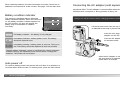
Confirm the battery has sufficient power before connecting the camera to
a computer, the full-battery indicator should be displayed on the monitor.
The auto power off function is disabled when the camera is connected to
a computer. The use of the AC adapter (sold separately) is recommended
over the use of the battery. For users with Windows 98 or 98SE, read the
section on how to install the required USB driver before connecting the
camera to a computer (p. 49).
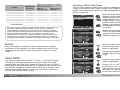
System requirements
For the camera to be connected directly to the computer and used as a
mass-storage device, the computer must be equipped with a USB port as
a standard interface. Both the computer and the operating system must
be guaranteed by their manufacturers to support USB interface. The
following operating systems are compatible with the camera:
IBM PC / AT Compatible
Macintosh
Windows 98, 98SE, Me,
2000 Professional, and XP.
Mac OS 9.0 ~ 9.2.2,
Mac OS X v10.1.3 ~ 10.1.5, and
v10.2.1 ~ 10.2.3
PC MODE
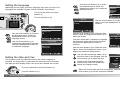
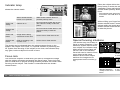
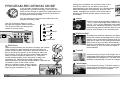
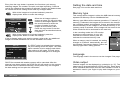
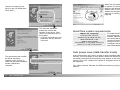
1.The memory-type option in the setup
mode must be set to the storage location of the images (p. 38 and 45). Turn
the mode dial to the data transfer position.
1
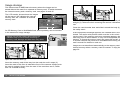
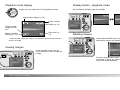
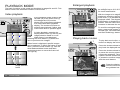
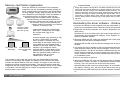
2.Start up the computer. The computer must be on before connecting the camera.
Check the Minolta web site for the latest compatibility information:
North America: http://www.minoltausa.com
Europe: http://www.minoltaeurope.com/pe/digital/languages_stage.html
3
Users with Windows 98 or 98 second edition will need to install the driver
software on the included DiMAGE Viewer CD-ROM (p. 49). No special
driver software is required for other Windows or Macintosh operating
systems.
Customers who have bought a previous DiMAGE digital camera and
have installed the Windows 98 driver software must repeat the installation
procedure. The updated version of the driver software included on the
supplied DiMAGE Viewer CD-ROM is required for the operation of the
DiMAGE E223 with a computer. The new software will have no affect on
the performance of older DiMAGE cameras.
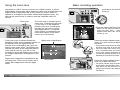
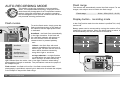
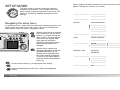
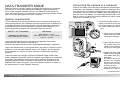
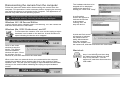
3.Open the terminal cover. Attach
the smaller plug of the USB
cable to the camera. Make sure
the plug is firmly attached.
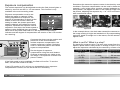
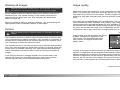
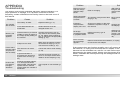
4.Attach the other end of the USB
cable to the computer’s USB
port. Make sure the plug is firmly
attached.
4
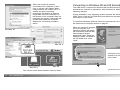
• The camera should be connected
directly to the computer’s USB port.
Attaching the camera to a USB hub
may prevent the camera from
operating properly.
• When the camera is connected to a
computer, the LCD monitor is off.
(Continued on the next page)
46
DATA TRANSFER
MODE
47