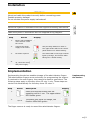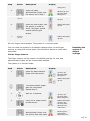
1
Step
Action
Description
Display
in step 2.
5.
6.
No action
required.
Wait for 5 seconds.
Status LED lights
up orange, the
function LEDs
flash green.
-
The upper status
LED flashes
green.
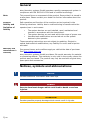
The finger scanner has been reset to its default settings. You can now
recommission the system.
Via the control panel
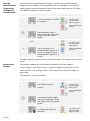
Resetting to the default settings is only possible with the ekey home CP
mini 1 and is initiated via the control panel. This can only be undertaken
for the ekey home CP micro 1 at the factory.
Step
Action
2.
Description
Display
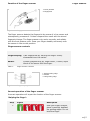
Press and hold the button
with the operating rod for
at least 4 seconds.
1.
No action
required.
-
Status LED
flashes red.
Status LED lights
up orange, the
function LEDs
flash green.
The control panel has been reset to its default settings. You can now
recommission the system.
See Implementing the devices page 9.
Updating the
software
We are working to constantly improve our products and add new
functionalities. Correspondingly, updates are made available for the finger
scanner and control panel software. More information about this can be
obtained from your dealer.
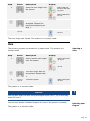
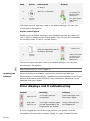
Error displays and troubleshooting
Display
Meaning
Remedy
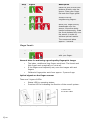
Status LED
lights up red.
The finger was not
recognised
Draw the finger over
the sensor again.
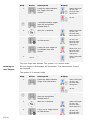
Status LED
lights up red.
The finger scanner lights
up red immediately. No
fingerprints are stored.
Store a minimum of
one fingerprint.
If these suggestions fail to solve the problem, the system must be
returned to ekey biometric systems GmbH for repair. Please ship the
14│en