1
Sun-G+ Rev.C
A5 size
11/14/97
R
Chapter 6
pass 0
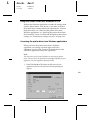
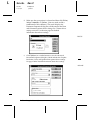
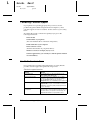
Installed Printers list
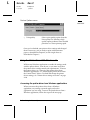
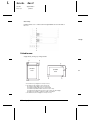
This list displays information about the EPSON printers
connected directly to your computer. If you select List from the
View menu, the list displays only the printer names and icons.
If you select Details, the list displays the printer name, status,
and job count of each printer.
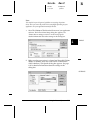
When you install the Status Monitor, it automatically adds the
names and icons of all the EPSON printers connected to your
computer to this list. To add or delete a printer from the list,
select Add Printer or Delete Printer from the Settings menu.
To save computer memory, delete any printers you do not
need to monitor. (Doing so does not remove the printer driver
from your computer.)
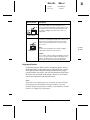
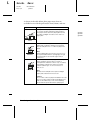
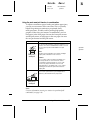
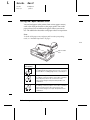
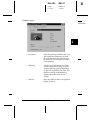
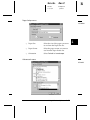
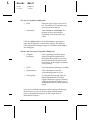
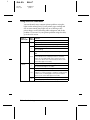
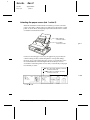
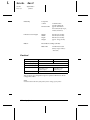
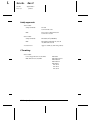
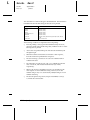
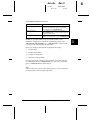
The appearance of the icon next to each printer name changes
depending on the printer’s status as described in the table
below. See online help for more information.
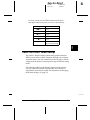
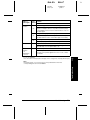
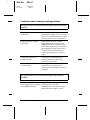
Icon appearance
Description
Green
The printer is ready to print, or currently
printing.
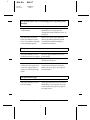
Yellow
The printer needs routine maintenance.
Red
A printer error has occurred and your
printer cannot print. See Chapter 7 for
troubleshooting information.
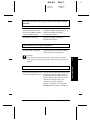
Dimmed
There is a communication problem
between the printer and the Status
Monitor.
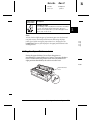
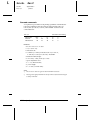
The Status column of the Installed Printers list displays brief
messages describing the current status of each printer, and the
Job Count column displays the number of jobs waiting to print
on each printer.
Note:
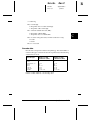
You can arrange the printers in the Installed Printers list according to
the information in the Printer Name, Status, or Job Count column. Click
the Printer Name, Status, or Job Count title bar to change the
printer order.
Using EPSON Status Monitor 2
6-5
6