1
Using your Sony Ericsson T68/T68i/T610/T616/Z600 with the Logitech wireless hub
6.
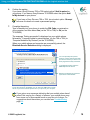
Confirm the pairing.
If you have a Sony Ericsson T68 or T68i select option 2 Add to paired on
your phone. If you have a Sony Ericsson T610/Z600 select the option Add
to My devices on your phone.
If you have a Sony Ericsson T68 or T68i, do not select option 1 Accept
because this does not create a permanent pairing.
7.
Complete the pairing.
Type a Passkey into your phone to match the PIN Code you entered on
your computer, and then select Yes (on the T68 or T68i) or Ok (on the
T610/Z600).
The message ‘Pairing succeeded’ is displayed on your mobile phone,
followed by ‘Computer Added to paired devices’ (on the T68 or T68i) or
‘Computer Added to My Devices’ (on the T610/Z600).
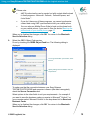
When your mobile phone and computer are successfully paired, the
Bluetooth Service Selection dialog is displayed:
You can optionally set up these
services, but don’t activate the serial
port services unless you want to use
other programs that may need them.
To enable file transfer, select the
OBEX Object Push service.
IrMC Synchronization is required to
synchronize contact details.
For the Sony Ericsson T610/Z600, you can select the OBEX File Transfer
service if you want to transfer pictures from your phone to your computer.
If you get an error message indicating that your mobile phone hasn’t
paired, this may be for a variety of reasons: your mobile phone may
have come out of discoverable mode or may be out of range. For
suggestions about the actions you can take see Troubleshooting,
page 36.
© 2003 Logitech, Inc.
10