1
Connections and driver installation (Windows)
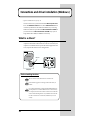
When using your computer’s CD-ROM drive to play an audio
CD, or when playing background music for games with the
UA-3
If using Windows Me:
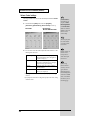
Select [Start]-[Settings]-[Control Panel]. In the [Control Panel], doubleclick the [System] icon to access the System Properties dialog box. Click the
[Device Manager] tab, and double-click the [CDROM] icon. Below it, doubleclick the CD-ROM drive that you are using and open its Properties. Click the
[Properties] tab, and select the check box located beside the Digital CD
playback item “Enable digital CD audio for this CD-ROM device.”
If using Windows 2000
In the same way as for Windows Me, open the System Properties dialog
box. Click the [Hardware tab], and click the [Device Manager] button to
open the Device Manager. From the CD-ROM drives, double-click the CDROM drive that you are using to open its Properties. Click the [Properties]
tab, and select the check box located beside the Digital CD playback item
“Enable digital CD audio for this CD-ROM device.”
If using Windows 98 or Windows 98 SE:
Select [Start] - [Settings] - [Control Panel] - [Multimedia], then click on the
[CD Music] tab, then check “Enable CD digital audio for this CD-ROM
device.”
Depending on your computing environment, playback of these CDs may still
be impossible. For details, refer to information provided by your computer’s
manufacturer. If you are using a PC-card (PCMCIA) type CD-ROM drive,
playing back WAVE data or an audio CD on the CD-ROM drive may cause
the sound to be interrupted, or no sound may be heard at all.
Checking for sound output
After the connections have been made correctly, you can play back the
sample data to check your setup.
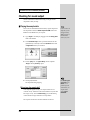
■ Playing the sample data
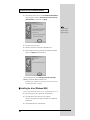
Here we will use standard Windows functionality to play the sample data.
The sample data is found in the AUDIO Capture CD-ROM. Insert the CDROM into the CD-ROM drive of your computer.
In order to listen to the
sample data, you will
need approximately
30MB of free space on
the hard disk where
Windows installed.
1. Copy “Alright(.wav)” to the desktop by dragging it from the
“Sample_Data” folder of the CD-ROM.
19