1
. . . . . . . . . . . . . . . . . . . . . . . . .
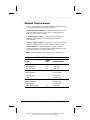
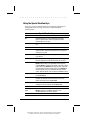
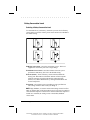
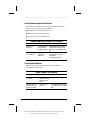
Solving Trackball/Mouse Problems
Some common causes and solutions for trackball and mouse
problems are listed in the following table.
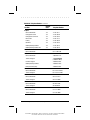
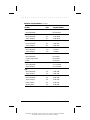
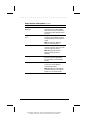
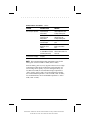
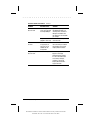
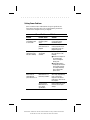
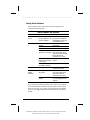
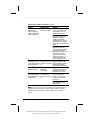
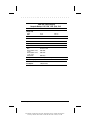
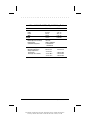
Trackball/Mouse Problems and Solutions
Problem
Possible Cause
Solution
External PS/2
trackball or mouse
does not work.
External serial
mouse does not
work
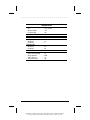
Standby (Suspend) was
not initiated before
device was connected.
The computer was not
shut down before
connecting the device.
Incorrect or no device
driver is installed.
Initiate Standby (or shut down the
computer). Connect the device.
Exit Standby (or reboot).
Shut down the computer.
Connect the device. Reboot.
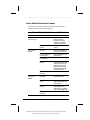
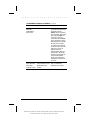
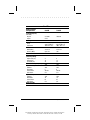
To view the pointing device,
access the Start menu via the
keyboard by pressing Ctrl+Esc.
Use the arrow keys to get to
Settings, then Control Panel, and
press Enter. Use arrow keys to
select the System icon and press
Enter. Use the arrow keys to
access Device Manager. Use the
Tab key to get to the computer
icon and the arrow keys to select
the mouse. Press the right arrow
to access the hardware. Tab to
the Properties button and press
the Space bar. Use the right
arrow to get to the Driver Tab and
follow the instructions on the
screen.
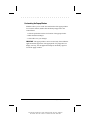
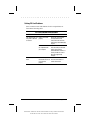
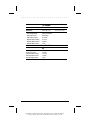
Integrated trackball An external PS/2 mouse Press the Power button to place
does not work.
or other pointing device the computer in Standby.
is connected to the
Disconnect the mouse or other
computer, and the
pointing device, then press the
system disabled the
power button again to exit
integrated trackball.
Standby.
An external serial mouse Press Shut Down on the Start
or other pointing device menu to turn off the computer.
is connected to the
Disconnect the mouse or other
computer, and the
pointing device, then press the
system disabled the
power button again to reboot.
integrated trackball.
Continued
11-18
Troubleshooting
Part Number: 262446-001 Writer: Dianne Fielden Saved by: Johnnie Abercrombie
Saved Date: 09/17/96 07:49 AM File Name: CH11.DOC