1
Microboards Utility
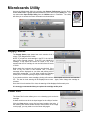
Access the Microboards Utility by selecting the System Preferences from the Dock.
Select Print & Fax. Highlight the Microboards PF-3 icon and click the Utility icon. You
can also select Open Printer Utility from the Utilities menu in PrintWrite. The Utility
will allow you to access the Printer information as shown below.
Docked
Utility Icon
Supply Status
The Supply Status page shows how much remains of all 3
colors, Cyan, Magenta and Yellow.
NOTE: If you place a used cartridge in the PF-3, the ink level
may not be reported correctly. If the PF-3 can identify the
cartridge, it may report the correct ink levels; if not, it will
assume that the ink cartridge is new and will show ink levels
of 100%.
Before each disc is printed, the ink levels are checked. If the
level of any one color is has reached 10%, a warning
message will be displayed on your Mac and printing will be
temporarily suspended. You can either change the cartridge
at this point, or continue printing using the same cartridge.
If you continue with the same cartridge, printing will continue uninterrupted until the ink level reaches
5%. The low ink level warning will be displayed once more. Again, either change the cartridge or
continue.
Once the ink level reaches 3% or less, the warning will be displayed before each print.
It is strongly recommended that you replace the cartridge at this point.
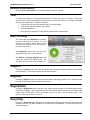
Clean Pen
The Clean Pen function allows you to run a cleaning cycle on the ink
cartridge.
At least one disc must be in the input hopper for the utility to function.
Click the Clean button once a disc has been loaded to the belts. If
the resulting disc shows streaks similar to those shown in the image
on this page, you may need to run the Clean utility again.
12