1
9
Connecting to Intel AMT systems using KVM
KVM requirements
KVM requirements
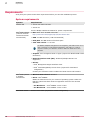
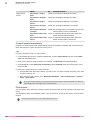
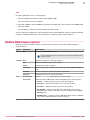
Make sure that your system meets these requirements to connect to a system from McAfee KVM
Viewer.
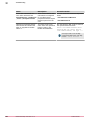
System
Requirements
KVM host system (from where the
McAfee KVM Viewer connection is
initiated)
If using a Windows XP or Windows Server 2003 system, it
must have:
• Windows Remote Management (WinRM)
• Microsoft .NET Framework 3.5 SP1
KVM target client system (An Intel
AMT system)
®
• Version: 6.0 or later
• Graphics: Intel integrated 3000 or higher
®
Download McAfee KVM Viewer
Download McAfee KVM Viewer from Software Manager, then save it to a system from where you want to
access your Intel AMT systems.
®
Task
For option definitions, click ? in the interface.
1
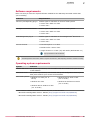
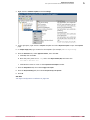
In the McAfee ePO console, click Menu | Software | Software Manager.
2
On the Software Manager page under Product Categories, click Software Not Checked In | Licensed.
3
Select McAfee ePO Deep Command 2.1 from the products list, click Download next to McAfee KVM Viewer, then
save the .zip file.
4
Extract the .zip file to obtain the MKVMView.exe file to access the McAfee KVM Viewer.
Set up the client for KVM
®
Configure the KVM policy, then enforce it to the Intel AMT systems.
Before you begin
Create a KVM policy to enable KVM.
Task
For option definitions, click ? in the interface.
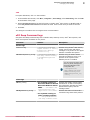
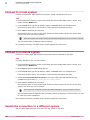
1
In the System Tree, select the systems that you want to access remotely.
2
Click Actions | AMT Actions | Enforce AMT Policies, then click OK.
See also
Create a KVM policy on page 100
McAfee ePO Deep Command 2.1.0
Product Guide
121