1
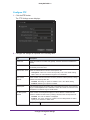
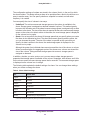
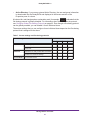
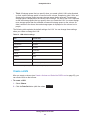
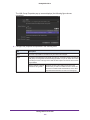
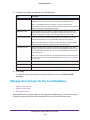
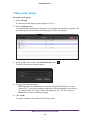
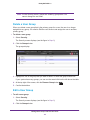
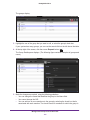
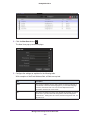
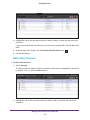
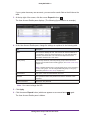
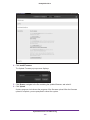
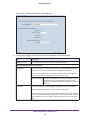
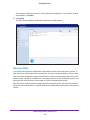
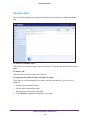
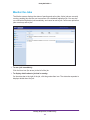
ReadyDATA OS 1.3 • Thick. All storage space that you specify when you create a thick LUN is also allocated up front, and the storage space is reserved on the volume. Snapshots, other LUNs, and shares on the volume cannot consume storage space that is reserved. The reserved storage space is displayed on the volume icon in orange. The size of the LUN is reported as the total storage space that you specify when you create the LUN. You cannot assign more storage space than the available nonreserved storage space on the volume. As data is written to the share, the used storage space is displayed on the volume icon in purple. The following table explains the default settings of a LUN. You can change these settings when you create or change the LUN. Table 10. LUN default settings Item Default State Logbiasa Latency Compression Disabled Dedupe Disabled Protection Continuous Interval Daily Provision Thick Size No limitation Access Denied until you set permissions a. You can change the logbias only when you change the properties of a share. Create a LUN After you create a volume (see Create a Volume and Select the RAID Level on page 23), you can create LUNs on that volume. To create a LUN: 1. Select Shares. 2. Click the Data Set button (with four cubes, ). Manage Shares and LUNs 92