1
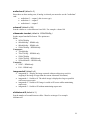
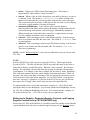
readperf bigfile.mpg
If the “dir” command fails, you’ll get the following result:
Roku> dir /
opendir[/]
Error: can't open dir
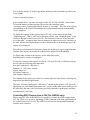
If the “readperf” command fails, you’ll get the following result:
Roku> readperf bigfile.mpg
SET FEATURES transfer mode SUCCEEDED
Unable to open file ATA:\autorun.bas
Testing Scripts, Playlists, and .CSV
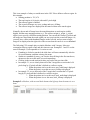
An efficient way to test playback is to use the BrightSign Shell. By using the shell, you
can see “debug output”. From the BrightSign Shell you can start your script manually
and view output from the script. You can start a script from the shell by using the “script”
command. Follow the directions above to connect the BrightSign to your computer, and
access it using Hyperterminal.
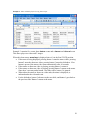
As your script runs, you’ll see output in your terminal program. You’ll see a variety of
output including mouse clicks or button presses, file names, audio and video settings, as
well as any errors associated with incorrect use of functions or commands including the
line numbers.
Testing Playlists
When your playlist contains the keyword “debug” the autorun.bas script provides detailed
output to the BrightSign Shell during playback. To begin testing playlists, do the
following:
1. Copy your content including playlist and autorun.bas to your CF card
2. Open your autoplay.bsp (main playlist file) and add the keyword: debug
3. Insert your CF card into the BrightSign, and add power
Testing Autorun and .CSV files
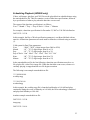
Running the autorun.bas in debug mode will provide detailed output to the BrightSign
Shell while the script is running. To begin testing the autorun.bas script in debug mode,
do the following:
1. Copy your content, including .csv file and autorun.bas to your CF card
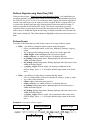
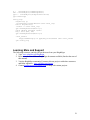
2. Open autorun.bas and find the “debug=false” line near the top of the script
debug=false
'set to true to turn on debug prints; false to turn them off
52