1
42
DSView Installer/User Guide
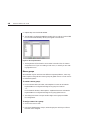
2. Click on the primary/backup server pair that you wish to use and click OK.
If you select the Show on Startup box, you will be prompted to select a server
pair every time that you start the machine.
To add a backup DSAuth Server:
1. Install the DSAuth software on the PC that is going to be the new backup
DSAuth Server.
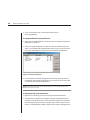
2. From the Start menu, select Settings - Control Panel and double-click on the
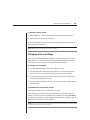
DS Auth Configuration icon. The DSAuth Configuration dialog box
will appear.
3. Select Backup Server and enter the name of the primary DSAuth Server in
the block provided.
4. When prompted, restart the Avocent Authentication Server service.
5. From the Start menu, select Settings - Control Panel and double-click on
the DS Auth Configuration icon on the primary DSAuth PC. The DSAuth
Configuration dialog box will appear.
6. Select Backup Server and change the name of the backup DSAuth Server to
the new name.
7. When prompted, restart the Avocent Authentication Server service.
8. From the Start menu, select Settings - Control Panel and double-click on
the DS Auth Configuration icon on the primary DSAuth PC. The DSAuth
Configuration dialog box will appear.
9. Click the Install Authentication Tokens button. This will issue new authorization tokens to all attached systems running the DSView Client, identify any communications issues that the system is having and provide an
opportunity to correct them.
To promote the backup DSAuth Server to primary:
1. From the Start menu, select Settings - Control Panel and double-click on the
DS Auth Configuration icon on the primary DSAuth PC. The DSAuth Configuration dialog box will appear.